Although there is over a month left of my first year in the classroom for a while I though that I’d start writing this as if I leave it till the summer… 1

I am lucky enough to be teaching in a 1–2–1 classroom. 15 pupils spread across primaries five, six and seven.

I’ve probably not done as much with the iPads as I could have this session, stepping back into the classroom after a few years out has been ‘interesting’, teaching a multi-composite has had it challenges too.

The last time I was in school the classrooms had 2 desktop PCs, we shared a lab of desktops and a trolley of laptop. This was a great provision, but 1–2–1 is quite different.

The iPads are original Airs. They have individual ‘school’ iCloud accounts and the pupils use their glow accounts for emails, online storage (O365) etc.

Apps are distributed via a free meraki MDM account. The devices are not in DEP. I ask pupils to request app that they want. And not to install them themselves. Obviously they could if they wanted to. We have a few restrictions, movie age for example, set from meraki but the devices are pretty open.

App notes

Some brief notes on the main apps we have used this session.

  • Drawing, Brushes Redux & Tayasui Sketches
    • learning about layers, illustrating, art. Tracing images of all sorts is very popular with pupils in spare moments. 2
  • Whiteboard Some of the pupils prefer a real one though.
  • Camera
    • recording learning (photo & video)
    • illustrating work (poetry) 3
    • presenting work (markup)
    • photography, casual learning about craft
    • video, casual learning about craft
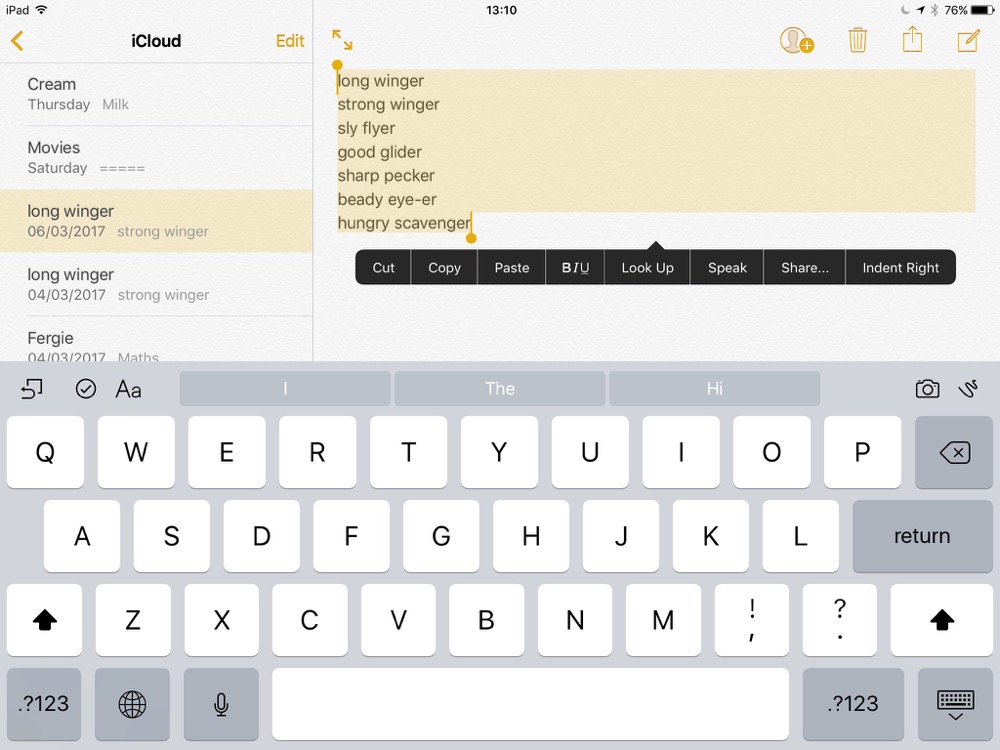
  • Notes
    • writing, as the year has gone on we have written more in notes and less in other apps.
    • drafting, especially useful for blogging as removes any distractions.
    • collaborative writing, it is easier to airdrop a few notes that setup online document.
  • Safari, having an always to hand reference book, media library etc. Brings a lovely set of problems with it, copyright, fact checking and distraction. Updating the school blog and e-portfolios should be easier when everyone has a browser to hand.
  • O365 through glow. I’d decided to use these office tools this session. At that point I could have used the Apple ones, but would, then, have had to pay for the apps. I could have used Google, but would have had to organise accounts.
    • Microsoft Word, used for writing, especially for presentation and if work needs printing. Now we often start in notes. Early on we tried a lot of handing in of work via sharing in O365. Had a lot of problems with work going missing, documents not fully syncing. Some of this might have been confusion round saving (locally, Onedrive,auto, manual) some due to poor bandwidth. Now I ask pupils to start in notes, moving to word for formatting and adding images.
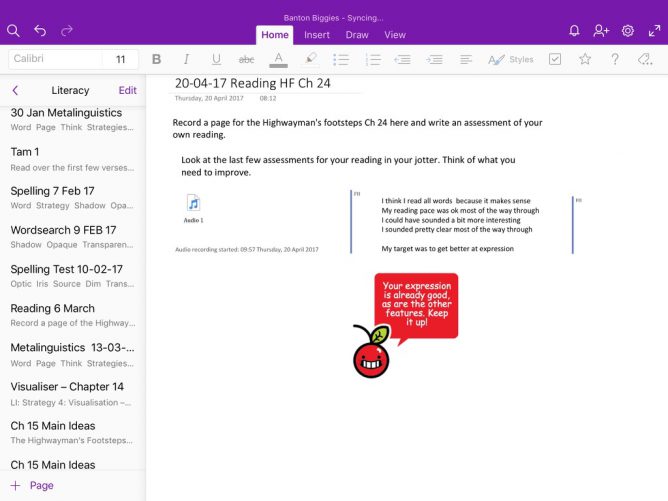
    • Microsoft OneNote, after early problems with Onedrive & word I decided to use Onenote as a virtual, handout/worksheet/jotters solution. When it works it is great. Unfortunately, for us, it doesn’t work consistently. I have persisted, for months. One of the most frequently used apps, but am probably going to look at other solutions next session.
      • I’ve blogged about the problems and spent a fair amount of time trying out solutions suggested by other glow uses, twitter folk and the Microsoft team.
    • PowerPoint, we have used a little. Most often as a choice for personal projects. I think I’ll try Keynote next session as is now free.
    • Microsoft Sway, we have dipped into sway, I’ve not found the pupils as excited by the app as other glow users have reported. Might be the way I’ve explained it?
  • LEGO® Movie Maker, a nice free stop motion app. we used this for some maths shape work and a whole class Tam O’Shanter movie. 4 I think the app has been discontinued a great shame
  • iMovie, for editing videos, science reports, animations. Some of the pupils are very keen on trailers in any spare moments, golden time and personal projects. 5
  • 5SecondsApp – Animated GIF Create & Search – Animated GIF Create, occasional fun for the blog often in combination with MSQRD. 6
  • Padlet has great potential, but our bandwidth seems to be too poor for this.
  • MyScript Calculator – Handwriting calculator – Handwriting calculator, some of the class like this, others prefer the google one in the browser.

If I was limited to the number of apps I think we could have got by with stock software, Safari, Notes and Photos will get you a long way. I’d add iMovie next.

The app I’d like to find is the simplest audio recorder that would allow pupils to listen to, record and share audio. It is a pity that Apple voice memos is limited to the iPhone. We have used boss jock junior a bit this session, but I think I’ll try the free version of ferrite next, unless I find something simpler.

Workflows

Attempts to distribute, gather and organise.

Over the session I’ve used OneDrive, OneNote and latterly experimented with Apple Classroom. These all have their strengths and weaknesses.

Pupils creating documents in OneDrive and sharing with me was the way we started. The obvious problem is organisation. We tried both sharing documents through OneDrive and emailing back and forward. Emailing proved to be the most successful, we had a lot more failures with sharing, as noted above, it’s hard to tell if these are problems with the syncing, pilot error or due to lack of bandwidth. Emailing brings organisation problems.

The main app I’ve used this session for distributing and collecting information has been OneNote. Apart from a few dislikes of the way the software works, no grouping in particular, the concept of how OneNote should work is great. Unfortunately We’ve lost data, had slow syncing and a lot of errors thrown. Even when working with a small group of 10 pupils, getting work to review back from all of them in a timely fashion has been a struggle. We have quite often lost work completely.

The possibilities of the class notebook are wonderful. Pupils record and assess their own reading on the one page. I can use the classnote book tools to click through them all listing and adding my 2 pence worth easily. I can had out maths ‘worksheets’ with a video of myself working through the problem embedded. The pupils work can organised and accessed easily. Unfortunately it doesn’t always work for us.

Recently I took the iPads out of meraki management to allow us to test the Apple Classroom app. The best practise for doing this is to have the iPads in DEP, The Device Enrollment Program, and supervised in an MDM (e.g. meraki). Unfortunately our iPads are not in DEP and they would have to be wiped to do that. I am not doing that at this stage in the session.

Instead I got the pupils to remove the MDM management and join a manually created classroom. Compared to the onenote workflows described above the classroom is quite limited. There is no organisation of media, text etc. The killer feature, for me, is that sharing is done locally, via Airdrop, without needing to get data out to the internet. So far I’ve just used it to distribute and collect files, notes and media files of all sorts. This is lightning quick, and so far I’ve had no problems. Longer term I need to figure out how pupils work could be organised, both on their iPads and mine. Notes has a simple folder system, but it could get pretty messy over time. I wonder if iOS 11 out this autumn will help, either with improvements to the Notes app or the new Files app that integrates with OneDrive?

Next Session

There is a lot to think about. I avoided the Microsoft classroom this session, it felt a bit too complex for me and seemed to still be evolving. Quite glad as MS classroom is going to be replaced by Teams. I am wondering it if will be any more successful than OneNote in my situation.

Next session Glow will also give use access to the Google suite, I’ll be interested in seeing how that plays out. My personal use of google apps has lead me to feel that they are lighter weight and faster to sync than O365 but I’ve not used them in the classroom.

I am also, now they are all free, thinking that switching to the Apple ‘office’ apps would be a good idea. I certainly find pages and keynote easier to use on iOS than Word or PowerPoint. 7

I am tempted too by Apple classroom, the quick local transfer seems like a good idea.
From the distribution to pupils, just using the notes app with the classroom Airdrop, where you can send to the whole class or a group is a great improvement over OneNote. On iOS or mac the OneNote classroom lacks the ability to send to groups which Apple Classroom has. The success and speed of Airdrop beats O365 via the web hands down (not surprising). Tables I’ve missed a little and it would be nice to be able to record audio straight into notes. It is simple enough to record in another app and insert into notes.

Ideally I’d love the simplicity and speed of Notes and Airdrop to be extended to add some of the organisational features on OneNote classroom.

I am a bit disappointed that I’ll start next session still unsure about the best way forward. Google will not arrive in Glow until September. MS teams is not yet ready for use.

I am looking forward to trying all of this out, but mindful that swapping out workflows is not as easy for our digital natives 8 as it is for me.

  1. Yup, this post has taken at least 3 weeks to mature. It is a bit of a grab bag but has helped me think things through. Only Two and a half days left now! ↩
  2. Art Gallery – Banton Biggies a lot of this is made in Brushes. ↩
  3. Kennings, we know about animals – Banton Biggies ↩
  4. Scenes From Tam O’Shanter – Banton Biggies ↩
  5. Video – Banton Biggies ↩
  6. RedNoseDay Animated Gifs – Banton Biggies ↩
  7. Personally I am not a frequent user of office apps. I would never open word, pages or google docs just to enter text. Drafts would be my iOS productivity tool of choice. ↩
  8. I found the pupils are really quick in learning some digital things, but I don’t think that includes organisation.↩
This is pretty basic stuff but I’ve found it useful in class.

I’ve often combined writing poetry with digital tools in the classroom. There are a lot of short forms that mean even the slowest typist can produce something good in limited time. From a pupil blogging perspective pupils of varying ability often get great results they can be proud of publishing.

When I started using iPads in teachers training and with pupils, I started using simple poetry forms as a way to produce something quickly that could develop from text be combined with images, video and audio.

Good, IMO, forms are kennings, lunes, haiku and six word stories.

Back then we used skitch and comic life to added text to pictures. More recently I moved on to the free version of pic collage 1.

When I arrived back in the classroom with a pile of iPads I’ve been using the technique quite a bit.

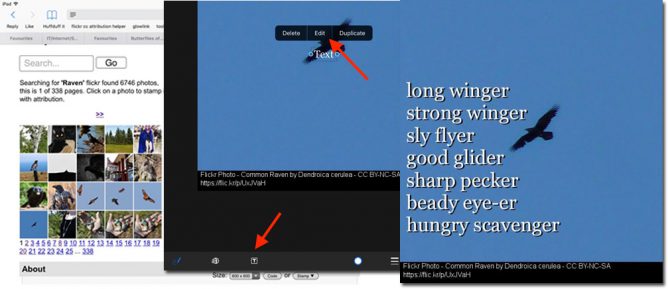
More recently 2 I’ve cut out third party apps to use the newish built in markup in the Photos app. Recently I demoed the process at an interview and saw Jenni Robertson show it at an Apple event in Glasgow. On both occasions I was surprised to find that it was a new concept to most of the audience. I though it might be worth a post here. There is a video embedded at the bottom of this post, but here are some written instructions.

Start with an image

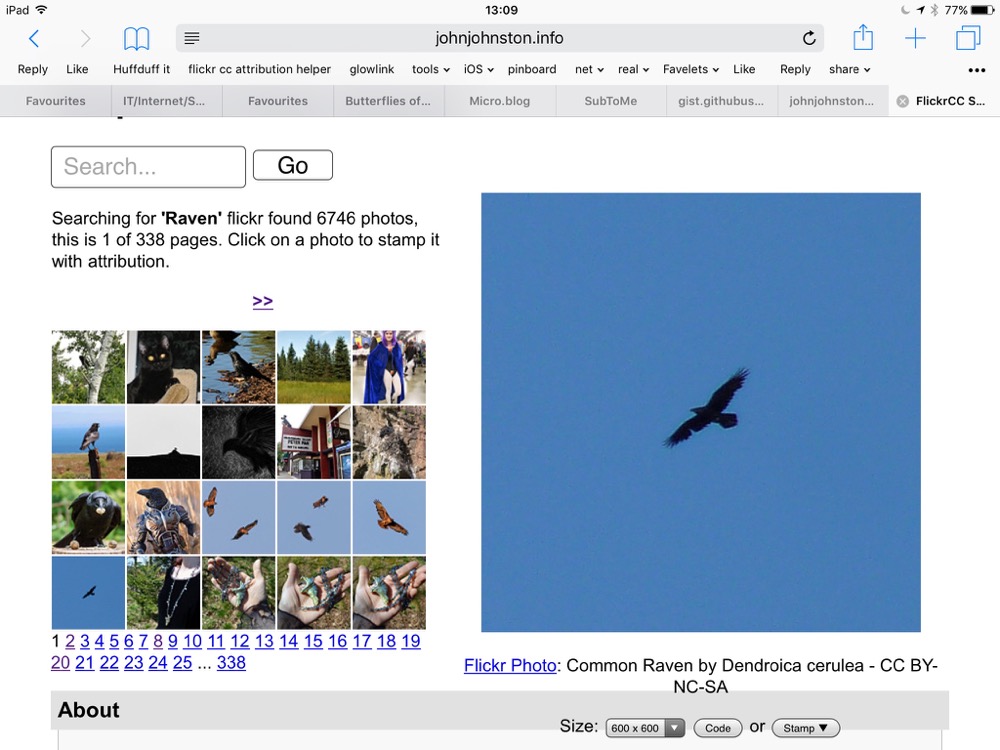
This is a good opportunity to talk and demo a wee bit about copyright and attribution. In class we often use the Morguefile or my own FlickrCC Stampr.

write some words

I believe it is best to use the notes app for this, avoiding thinking about how the text looks, where it goes etc.

Copy the text to the clipboard.

Combine the words and pictures

Open photos

Select and view the image.

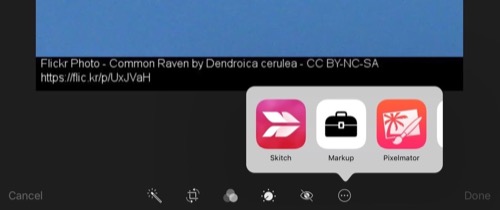
Click on the adjustment icon

When the photo opens click on the ellipses and then Markup

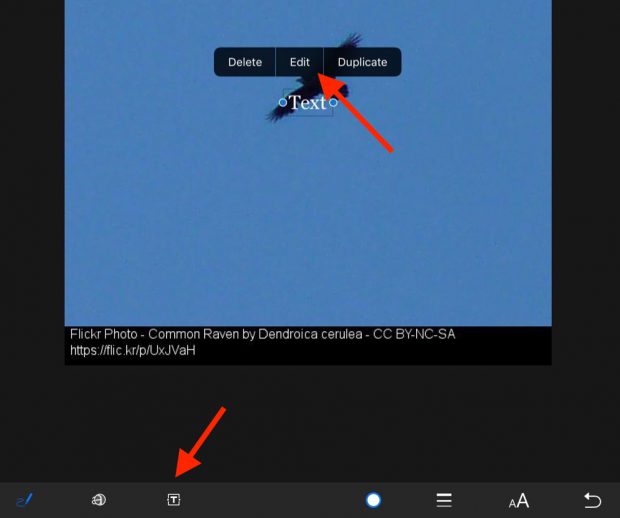
On the markup screen click the T tool to add a text box and then press on the box to edit it.


Paste in your poem.

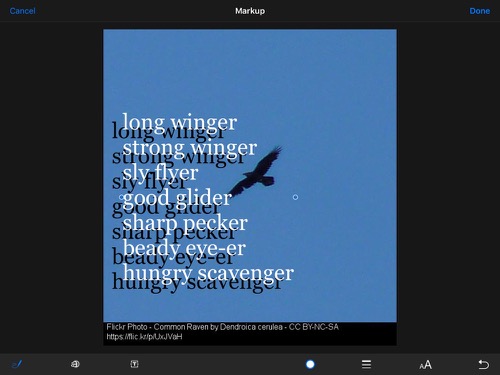
Adjust the size, colour and placing of the text.

Bonus Tip – drop shadow

Duplicate the text, change the colour of one and move the top one over the bottom leaving a nice ‘old style’ drop shadow. I think this is worth it as a intro to layers in graphics. It can also hep readability on complex backgrounds.


Although this is a very simple lesson I think it give the opportunity to teach a few different things over and above literacy involved in the writing:

  • Copyright and creative commons
  • Combining apps (safari, notes, photos) in a workflow.
  • Layers

It has the potential for being extended into video & audio editing (groups pictures perhaps) and sharing the results.

Here is a quick screencast.


1. Some examples from my class using pic collage Frosty Photos and Poems – Banton Biggies ↩

2. For example Kennings, we know about animals – Banton Biggies ↩

Facebook was the key to the entire campaign, Wigmore explained. A Facebook ‘like’, he said, was their most “potent weapon”. “Because using artificial intelligence, as we did, tells you all sorts of things about that individual and how to convince them with what sort of advert. And you knew there would also be other people in their network who liked what they liked, so you could spread. And then you follow them. The computer never stops learning and it never stops monitoring.”

from: Robert Mercer: the big data billionaire waging war on mainstream media | Politics | The Guardian

Carole Cadwalladr’s article in today’s Observer, is both fascinating and frightening. The technology used by Cambridge Analytics is incredibly  powerful the use it has ben put too worrying. Andy Wigmore, Leave.EU’s comms director in the quote above doesn’t have a Facebook account quoted in the same article:

It is creepy! It’s really creepy! It’s why I’m not on Facebook! I tried it on myself to see what information it had on me and I was like, ‘Oh my God!’ What’s scary is that my kids had put things on Instagram and it picked that up. It knew where my kids went to school.

Featured image on this post created with a wee AppleScript Makes auto complete google search gifs.

For the last couple of weeks I’ve been playing with the Fridge I blogged about the other day.

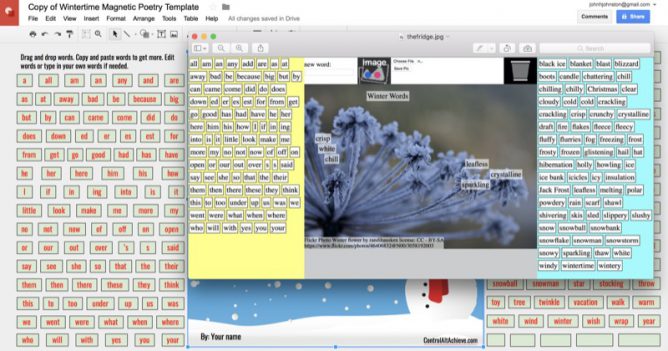
I was feeling pretty please with myself until I got a DM for Eric earlier this (UK) evening. He noticed that the dolch list on the screenshot of the webpage I had made was pretty much the same one he had used on an activity he had made and blogged about: Control Alt Achieve: Wintertime Magnetic Poetry with Google Drawings. It was the same list. I remember seeing his site when I google dolch or wordlist. I can remember copying the list but I must have done so. I didn’t keep the list, replacing it on Sunday with a full (or almost full) dolch list. But I did take and use Eric’s curation of the list without attribution at the time.

Eric was gracious enough to DM me rather than call me out publicly, giving me a wee bit of breathing room to put things right for which I am grateful.

I am particularly embarrassed as I spend a fair bit of time talking about copyright and creative commons, the image search in the fridge provides automatic attribution. I’ve often blogged about it and the difficulty in getting pupils away from a straight google search. In the previous post, I credit Tom Woodward for the idea, and link to the code I’ve used. I just didn’t even think about the words and the work involved in curating a list. I am now presuming that my using the dolch list is ok?

Eric was also kind enough not to suggest I’d taken the whole idea from his template, which looks like a quite reasonable assumption. Here I can only plead I’ve been playing with virtual fridge magnets for a while, this effort: fridge is from 2002. Made with Flash and flamethrower (sic) 1.

I’ve added some attribution to The Fridge now, I’ll update any help for it that I produce and link to this post from Sundays shortly.

I can only repeat my apology to Eric and thank him for the lesson.

  1. The flash bit still works, Flamethrower is no more. ↩

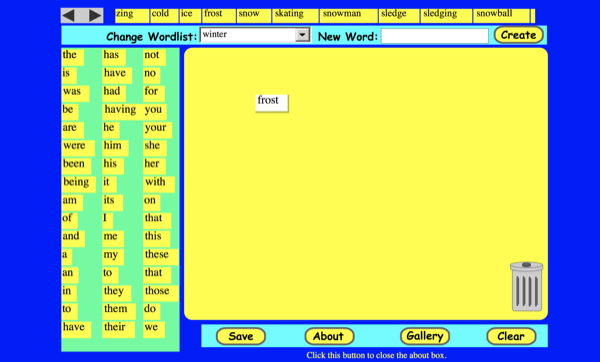
I’ve had a long term interest in digital ‘fridge’ poetry, making my first efforts with Flash around 15 years ago. A year or so ago I was excited by Fridge Poetry – Google Sheets as Database by Tom Woodward. There were a couple of goodies in that post, getting the word list from a google sheet and a nifty way to allow folk to easily make their own. I made a sheet and a poem and slotted the idea away.

I’ve revisited Tom’s post (and others) a few times, gathering tools 1 and wondering.

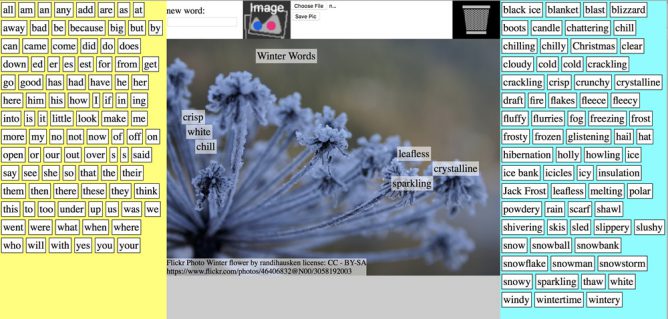
On the holiday weekend, given poor weather and a head cold, I revisited the idea and made my own Fridge.

This riffs & extends the idea a wee bit:

  1. You can add a background image to the poem, either from a built in flickr search or a local one.
  2. There is a standard common word list and a topical one from the google sheet.
  3. The words in the lists can be used more than once.
  4. I used JavaScript as opposed to php (except for proxying images to allow you to export).
  5. You can export the poem as an image.

I’ve edited Tom’s template a little, the new one:

  • Automatically generated a link to use. Tom got you to copy paste in the sheets own url and parsed that.
  • Adds a field for the image search.

Make a List this link should get you to create a copy of the list spreadsheet. You can edit the words (on the 2nd worksheet) and change the image search,  more info: Fridge Poetry.

Learning

I’ve gained a wee bit more JavaScript and jQuery. The idea of using Google sheets to populate a webpage or to display info from a sheet in a template is interesting. html2canvas is another tool that has interesting potential for storytelling on the web.

Using /copy at the end of a google sheet to allow anyone to make a copy is useful too.

Finally the ability of google sheets to get the id of the current sheet is really handy in simplifying the creation of links. This relies on a very simple script:

function getSheetID() {
  var r = SpreadsheetApp.getActiveSpreadsheet().getId();
return r;

}

you can then get the id by typing =getSheetID() in a cell.

Next

There is more help on how to make and use a wordlist here: Fridge Poetry.

Hopefully someone will find this fun of useful, if you do and create new wordlists please let me know.

NB, I made a bit of a mess of attributing on this post. An apology to @ericcurts Eric Curts |

TL:DR I’ve found a link that leads to google image search for  images labeled for noncommercial reuse. This is handy on iOS where it is hard to get to the Usage Rights Filter, here is the link: https://www.google.co.uk/search?q=&lr=&safe=active&hl=en-GB&tbs=sur:f&tbm=isch.

Coming back to the classroom after 9 years I find I am still interested in searching for images and copyright. It still seems to be as hard to get young children to understand the problem and harder to understand and carry out attribution.

On my classes blog I link to various places to search for images with some advice on attribution. I include my FlickrCC Stampr tool which can simplify the attribution.

As well as the problem with attribution there is the ever present temptation just to search google. This is made worse by the fact that the Search Tools displayed on iOS lack the Usage Rights popup.

So I was interested in the link I saw today: How to find Google images with reuse licenses on an iPad iOS – Using Technology Better.

Unfortunately this method was described as a hack and took 6 steps to get to the advanced search and the usage rights pop up.

iOS google Search no Usages rights in Tools.
Google Image Search Mac, has Usage rights in Tools.

So I though I might have a search for the url parameters1 involved in a search with the Usage rights displayed.

There are quite a lot of parameters and although searching google for a list provides some these seem to be both undocumented and changeable:

You can expect that a lot of this will change. The reason why Google themselves do not provide any guidance or documentation on these parameters is probably that they want to retain full freedom to change how they work. You can expect that some will be removed, some will be added, and others will give a different result than before.

from: Google Search URL Request Parameters | DETECTED Which give a lot of details, but not the one I wanted.

So I went through the process in the Using Technology Better post and copied the url. I then started deleting the parameters until I found the ones that would produce the right kind of search:

https://www.google.co.uk/search?q=&lr=&safe=active&hl=en-GB&tbs=sur:f&tbm=isch

The tbm=isch bit makes it an image search, the tbs=sur:f seems to set the usage rights to Labeled for noncommercial reuse.

So you can now give pupils on iOS a direct link to search for images that labeled for noncommercial reuse.

Featured Image: found searching Flickr for search with no known copyright restrictions: Image from page 211 of “Bulletin” (1961-1962) by Internet Archive Book Images No known copyright restrictions

1. The paramaters are the bits in the url after ? for example ?q=bus&safe=active, makes a search for a bus safe. ↩

This is hopefully a useful tip for organising pupil created content on WordPress blogs like Glow Blogs.

Most of the content posed to blogs consists of posts or pages. Posts join the stream, pages are static generally accessed from menus.

This is another way to organise content that can be useful. Especially if several pupils are posting similar content at the same time. It helps organise that content and the early posters don’t get pushed away down the stream.

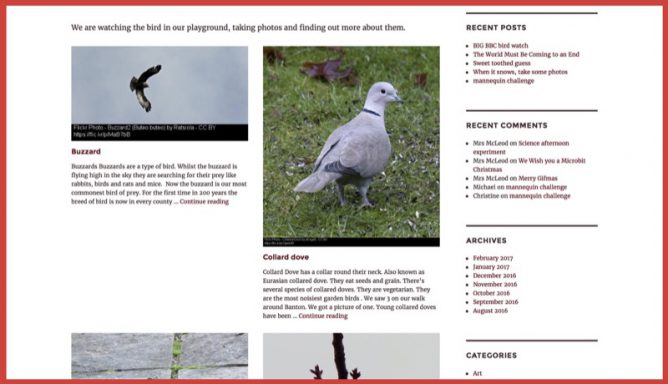
An Example Banton Birds

At school we are trying to pay attention to the local birdlife. We took part in the BIG BBC Bird watch with local Bird watchers, Mr & Mrs Carter. We started feeding the birds and trying to get some photos.

The pupils are doing a bit of research on the birds we saw (not too many it was a windy hour) and I hope they will continue over time adding other birds seen in the playground and around.

I want to organise these bits of research automatically collecting them together. To do this the pupils create, not posts or pages but a custom post type, project.

How it is done

This is just one way to do this but it is, at least on Glow Blogs, the most straightforward. It uses the JetPack Custom Content Types module and the unfortunately 1 named Portfolio Projects.

These projects are like pages in that they are out of the flow but like posts have Project Types (like categories) and Project Tags (like tags) that can be used to organise them. The also have a shortcode that can be used to create an index of the projects by type or tag2.

  1. Activate the Jetpack plugin.
  2. In Jetpack Settings Activate Custom Content Types.
  3. In Settings-> Writing Enable Portfolio Projects for this site
  4. Pupils create Projects for each item, add a project type (in this case Birds).

To create an index of these projects I add a page Banton Birds and add a shortcode to the page:

[portfolio include_type=birds display_types=false]

To make the index more visual the pupils make sure they have added a featured image to their posts. That automatically creates a thumbnail.

I’ve used this technique several times on blogs myself, including the Projects page on this blog. I’ve used it too to provide and organise photos and links on the Biggies blog for the pupils.

1. For Glow Blogs where we have a lot of pupil e-portfolios through a custom plugin. ↩

2. You could do the same with pages using the hierarchy and the Display Posts Shortcode plugin, but not as easily. ↩