THIS THAT OTHER
Image: psd

I’ve been thinking about iPads quite a lot recently and have built up a fair number of bookmarks.:
troutcolor’s ipad Bookmarks on Delicious

I joined in with Tom Barrett’s Interesting ways to use an iPad crowd sourced presentation. Previously I had tweeted that I thought it was a bit early to start this one, obviously I was wrong some good ideas for using an iPad in the class surfacing.

I also bookmarked AirDropper – Request a file from anyone. which lets Dropbox users securely request a file from anyone. Looks very useful.

Today following a couple of tweets from David Gilmour one pointing to YouTube – North Berwick Nursery’s YouTube Channel and the other to the North Berwick Nursery School blog, I subscribed to the channel and found one of my favourite blog posts of all time (now gone, archive link) which I shared with posterous. I love this post as it describes taking a dead mouse and turning it into a learning opportunity.

I saw a tweet mentioning me and the Flickr Search and Stamp for the iPod touch project on Friday. Clicking the link took me to Searching for CC images – SHea iPod Touch Project a post on Ian Guest’s posterous about:

a year long project between two schools, one in the London area and the other in Yorkshire. Students in two classes will be loaned an iPod Touch, for use both in school and at home.

The post contains a youtube video of how to use the Flickr Search and Stamp on an iPod touch and the blog has a lot of other interesting iPod Touch educational information.

I had mentioned this tool in a blog post and added it to the Interesting Ways to use an iPod Touch in the Classroom collaborative google presentation but have not blogged about it here..

The idea was to get around some copyright issues for children searching for images to create with on an ipod touch. Ideally children would save a photo, figure to the attribution and edit the photo to add this. That can be quite difficult and time consuming on an iPod touch so I though up this workaround. It searches flickr, only returning images that can be used and edited under a cc license, it then will produce an image with the attribution stamped onto it in the same way as my flickr CC search toy.

Flickr cc attribution

It is based on the iPod Touch Poems webapp I knocked together and has quite a few rough edges. I am sure I could improve the performance, interface & a lot more but it seems to work.

Here is Ian’s video, which should give you an idea of how the app works:

I’ve added a link from the page/Web app to the video to act as in app help so many thanks Ian for this. You can also get an idea of it the app work in this Simulator.

I’d appreciate any feedback on using the app, especially in class and ideas for improving it.

This post is the second in an attempted series about getting started blogging loosely linked to the launch of glow blogs.

Have you see this:

This is an example of a WordPress page, you could edit this to put information about yourself or your site so readers know where you are coming from. You can create as many pages like this one or sub-pages as you like and manage all of your content inside of WordPress.

Portrait Of The Unknown Saxophonist by an untrained eye
Attribution-NonCommercial License

anywhere recently?

The above quote gets me 751,000 hits on google if I search for it. Why? Because it is the out of the box About Page on a wordpress blog.

Most education blogs I know are wordpress ones, and a fair number of them have never edited their About page. I don’t think this need to be seen as self promotion, just politeness to your reader. When I see a link to a blog post and end up on a blog I’ve not visited before the chances are that I’ll be interested in who is writing it and something about them. I click on the About link.

Schools blogs too, I want to know the sector, who the authors are, age & stage and where in the world the schools is.

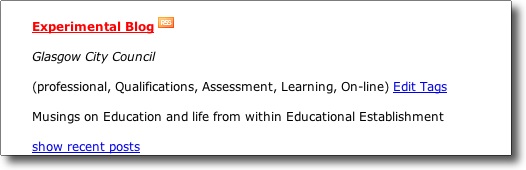
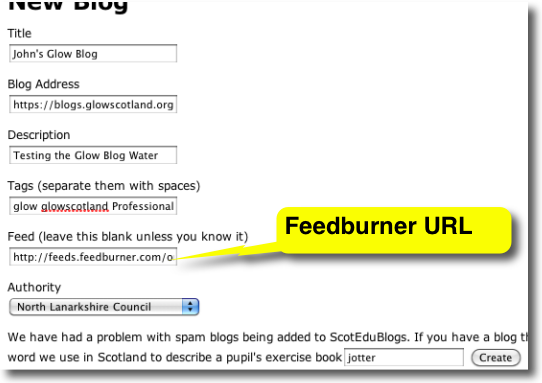
We are expecting a new batch of educational bloggers in Scotland this session as blogging become simple to set up via glow I am hoping that these new bloggers will add themselves to ScotEduBlogs and I’ll be able to read them and to find out a little about the writers.

As an aside, I’ve twitter set to send me a mail when I get a new follower, often these are folk who have not tweeted much, if I can tell from their tweets and they do not have a description or a link on their twitter page I often don’t follow back.

My own About John page may not be very interesting or even spelt correctly, but it is there.

This is a ‘mac’ post not really aimed at education except in so far as a lot of educationalists seem to be using Dropbox. Dropbox is of course a cloud storage & synchronisation application. Basically dropbox sets up a dropbox folder on your computer and syncs it with one online. You can set up dropbox on several computers and they are all kept in sync. This is extremely useful if you use different computers in different locations. I have my home mac, desktop at work, work laptop, iPhone and the iPad I am typing this part of the post on, all with the same files seamlessly synced. What makes drop box different is that on a computer it’s just another folder you do not need to do anything special to keep it in sync.

If you want to get a dropbox account & give me more storage on dropbox Get Dropbox.

I’ve been using drop box as a working directory for sometime now, as week as a way to view files on my phone and the iPad as well as being able to work on files at home and at work without worrying about taking them back and forward. Recently I’ve started using in a couple of slightly more sophisticated ways.

FastScripts

Dropbox Fastscripts

One of my favourite utilities is FastScripts, this is a menubar application that allows you quickly run AppleScripts (it also does shell and other scripts) these can be given keyboard shortcuts and are sorted into application specific lists.

Fox example I often use tiny url to shorten urls so have a script that takes the current URL from safari and puts a URL onto the clipboard. This script has a shortcut of Apple-ALT-control-U.

FastScripts list scripts stored in the Scripts folder in either the mac’s or user’s Library. Inside that folder it organises the different applications scripts inside an Application folder folders:

Fastscript libs

In this case you can see that the Applications folder is an alias. What I did was to move the applications folder to my dropbox folder, I then dragged it back, but with the command and alt keys held down. This left the folder in my dropbox but creates an alias in the Scripts folder, FastScripts sees the files in my dropbox. I can then create the alias in my other macs Scripts folder replaces the one already there. Now when I make a new script on any of the macs it is shared with the other ones and available through FastScripts.

TextMate, Droptext

I find that I use plain text files more and more, I write blogs posts, todo list, web pages and first drafts in TextMate. TextMate has some amazing features that are way above my head but I find it a must have application. Some of the files I use often I keep in a folder _notes in dropbox. Also in dropbox is a textMate project. A textMate project is just a easy way to see all of the files inside the _notes folder and its subfolder (power users can do a lot more with projects).

Textmate Project

What is great is I can access and edit these files from any of the computers I use and view them through the dropbox app on an iPhone or iPad. I can also use a 59p app droptext to edit these files on the iPad.

I have never really been one for productivity systems, I’ve always like 43 Folders but mainly as a distraction. However, I do like automating repetitive tasks and things that work automagically Dropbox, FastScripts & TextMate fit that bill.

Strip designer

This week I have added five new apps to my iPad and thought I’d post them here. 

The whole post was made on the iPad all text ‘written’ with Dragon Dictation.

The first is BBC News and this is just a translation of the BBC’s new site for the iPad that it works very nicely. It’s pretty slick there is a series of all news feeds on the left and you could see the articles on the right. You can customise the feeds so I’ve already remove sport and added the Scottish news  it seems very iPad friendly and like quite a few  designed read and access media in an attractive way.

Another media viewer I’ve  installed is FlipBoard which has been getting a lot of attention on the Internet and on twitter. This app pulls information from different sources, Facebook or twitter and from collections and about different things, say technology or entertainment.the app presents these streams in an attractive way.   You can to flip through the pages with some pretty effects.   What I think is really impressive that is with the tweets from your twitter stream it doesn’t just to show the tweets, if a tweet has an article linked it will present some of the article, with a photograph that will present the photograph.  FlipBoard has been a little controversial as it is pulling in content by scraping rather than they’re getting it from RSS feeds. To me this doesn’t seem too much of a problem most of the longer articles are shortened so you need to display the source along with any adverts and branding to read the whole thing. This viewing is done in the app rather than in safari. 

The next  app is regexecutioner which is an app  to help learn about regular expressions.   I do occasionally attempting to learn and to  use snippets of regular expressions. Hopefully this may  get me up to speed.  It is a pretty straightforward app were you can see  examples and you can take a regular expression and  a text block instantly see it’s result.

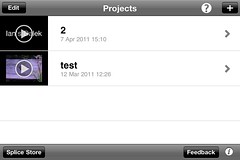
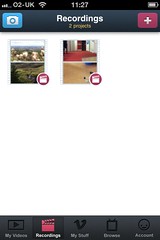
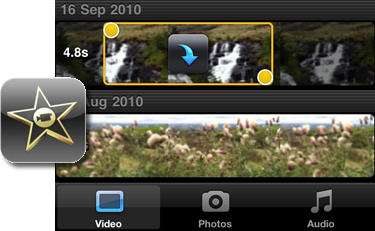
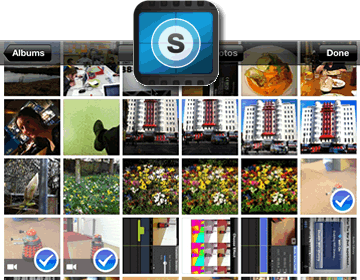
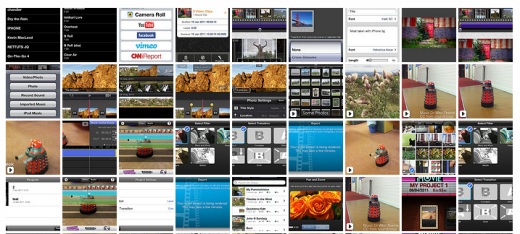
StripDesigner  is more of a creative app.  You can see from the screen shots that are  illustrating  this post that I have used it to present and annotate some screenshots of these application.  It’s a really nice ComicLife clone.  I tried on the iPhone first there the screen space is a wee bit limited but on the iPad and it just works very nicely indeed.  You can choose different layouts of up to five pictures.  You can add texts and the other things, adjusting fonts, text size and drop shadows in an easy and intuitive way.  I think it would be a great application to use in a classroom and I imagine I’ll be using it quite a lot.

The final application I’ve installed this week is Dragon Dictation which is an amazing application.  I have recorded all of this post and it turned into text using Dragon Dictation  it is very straightforward to use: you press a record button, you talk, you hit the Screen to stop.  Dragon  then analyses this (I imagine it sens the audio to a server) and brings back the text. You can quickly clean up and edit the text.   I tried it first on my iPhone you can tweet straight from Speech.  I then they tried on the iPad  and had one crash so made sure  to a copy of each section of this post as i  recorded six different sections. I had to do a little cleaning up, but given my accent and the fact that there is no training period make this application seem like magic.


With Glow blogs looking like they may stimulate the use of blogs in more Scottish classrooms I though I might put together a few posts about some ideas around starting to use blogs in the classroom.

A few years ago I blogged about Starting Blogging in the Classroom with some advice that I still think holds good. I’ve published some general notes at OpenSourceCPD Blogging, Introduction to blogging & Blogging with Pupils which may be of some use.

The above still stands but I want to pick up some details and tips, starting with short term blogs in this post.

Setting a date by Damon Duncan
Attribution-NonCommercial-NoDerivs License

I couple of weeks ago I was following a lovely class blog: International Week. The blog uses posterous’s ease of publishing media very well, the children are recording short pieces of audio with easi-speak mics and uploading them to the blog. The mics are in my opinion a great tools for the classroom.

In the week the blog has also had pictures, animoto, youtube, a survey, google maps and writing. It is a great example of using posterous in the classroom.

Kevin McLaughlin has produced an inspiring post about the week: A week of blogging and creative learning

One of the things I like about this blog is the length of time it ran: 1 school week, 5 days.
I spent a fair bit of time moving old posts across when I left Sandaig to here. I am a digital hoarder. I love the ability to look back through a year or 3 of a blog and I really like the connections that build up and grow on a long term blog. When I was teaching at Sandaig Primary my main blogging focus was Sandaig Otters which ran for 5 years at that url and is still being updated at a new home: Sandaig Otters.

But I also organised quite a few other blogs some for individuals, some for particular projects and these included a few short term blogs.

Short term blogging is, I think, a great way to add any short term project, trip or collaboration in class.

One of the first blogs I organised for short term use was The Listeners – Primary Six Writing Week which only has 11 posts. I probably spent more time customising the design than the class did blogging. I still feel it was a success, the children in the class were very much focused by publishing their work online and very much encouraged by the comments they received.

Since then I’ve organised quite a few short term blogs, including trip blogs and blogs for short school projects. Of course if you have a established weblog you could just use categories or tags to organise a set of posts round a theme or project, but this can be a great way to dip your toe into blogging and finding out how it could help your teaching.

Scottish teachers now have easy access to blogging tools with the release of glow blogs. At he time of writing the blogging facility is fairly basic but several improvements will be made before the start of the next session. Setting up a glow blog is very straightforward and LTS have produced some introductory material: Glow Blogs – An Overview « Glow Help Articles, glow blogs can be set to be private with only glow users, or a subset of those users having access or open to the public. I would recommend that you open the blogs up to the public. If I didn’t have access to glow I think I’d be very tempted by posterous as a simple way to set up a blog and get pupils started.

Although setting up and using a blog is technically very simple you need to think a wee bit about the attitude of the pupils, they need to know that they are not using bebo, facebook or messaging their friends, that they have a responsibility to themselves, their class and school.

Short Term Advantages

  • The pupils will not have time to forget the safety information or become fedup with you reminding them.
  • The initial excitement of publishing online will hopefully not fade over a short term project.
  • By setting limits in time and scope for the blog makes it more doable and less likely to lose focus or drift off which can happen with long term class blogs.
  • If the blog is collaborative with another school setting a fixed period will give all parties a target that is easier to met and give attention to than an open ended project.
  • If you are hoping that an audience will have an effect on your pupils organising that is simpler, and your audience will be more likely to stay the course.
  • It is probably easier to give pupils more control over the organisation of a short term blog with simple aims.

Short Term Tips

  • Makes sure the blog is set up and you are comfortable with using the interface
  • If you are going to use photos make sure the pupils know your rules for posting, (probably no named faces).
  • Pupils can use the cameras, edit and resize pictures independently. I am alway surprised at how many school taking photos is a job for adults.
  • Similarly with other media, make sure that you are not going to be needed to get it sort out and posted. If your pupils are not regularly handling cameras, importing and editing media files make sure you have at least a couple of experts before the project starts.
  • You can prep an audience, contact another school, explain to parents how to post, do a wee bit of online publicity (twitter).

Short Term Examples

International Week the blog mentioned at the start of this post is a great example. The rest are ones that I have organised, not that I think they are particularly good examples but I know more about them.

Snakes and Ladders, this blog was set up for a project designed to help integrate children joining our school when the one across the road closed down. Half a dozen primary sevens were given the responsibility of keeping the project blog up-to-date and did a great job. Another team were tasked with creating a video which was posted at the end of the project. The pupils were not in my class and basically organised themselves during the project.

The Dream Dragon – A log of the dream dragon project quite a different blog, mostly updated by myself and used as a teaching tool for a fairly long project with sporadic activity, I wanted the class to have an overview of the project.

World Cup 2006 I noticed quite a lot of classroom blogging about the current World Cup, this one stimulated a few reluctant boys, unfortunately the Scottish term cut it short.

We blogged trips to Holland in 2005, 2007 and 2008 these blogs were much appreciated by parents as were the Holland 2010 posts which kept my ‘tradition’ going after I left school. Trip blogs are a great way to demonstrate some of the powers of the internet to your class and to get parents interested in blogging.

I blogged a weeks trip to Glencoe 2006 to do outdoor activities. When a class I had previously taught to blog went with their next teacher to Blairvadach they were perfectly capable of organising the blog themselves.

Elephants was another week long poetry blog which gathered some of very interesting comments I’ll return to some ideas about comments in a later post. Like the The Listeners blog having a separate blog meant we could customise it for a particular project.

Bottle Poem

McClure – Sandaig is a collection of 3 blogs for a collaborative project with a class in Georgia in the USA.

In one of the blogs I made some fairly crude customisations that allowed comments to appear with the same weight as posts. I did this, as usual, at the last minute but I think it was a nice idea it reminds me that blogs are not fit for every purpose and were not designed with the classroom in mind, hopefully in the longer term we will get blog like software that will allow even more customisation than is available now.

This particular hack was performed quickly at the last minute and I would not have been able to do it if the blog had been a long term one. Short term blogs are ideal for all sorts of experimentation.

I am sure I’ve only scratched the surface of the use of a short term blog I hope these examples show that it can be a useful tool in the classroom and would allow folk unfamiliar with blogging to make an achievable and worthwhile start or experiment.

I hope produce a few more posts about classroom blogging which might be helpful to people starting out with glow blogs next session and will tag them glowblogs. I would be interested in collecting any other short term use of blogs in the classroom.

Twittering Haiku in the Garden at Night, after Chikanobu by Mike Licht, NotionsCapital.com
Attribution License

For quite a while now there has been a fair amount of discussion about how twitter is becoming the main conduit for web 2 type teachers to keep in touch and that blogging is on its way out.

I was interested to hear a couple of views about this on the edonis project podcast recently. Jaye Richards wondered if twitter was just a little too positive, not having space for critical discussion. Robert Jones talked about how it was hard to interest teachers in twitter if they did not already have an online network of some sort.

Although I tweet with a fair degree of enthusiasm I do sometime worry that it twitter takes something away from blogging. I’ve noticed a decrease in comments here and elsewhere and a decrease in my commenting beyond a quick tweet. For example my previous post here is sitting with no comments but several tweets.

Yesterday I read a few posts that convinced me that blogging is alive and well. I though I’d link to them here:

Margaret Vass posted Learning, Teaching and ICT » A Secondment Whirlwind Tour – 2 Years in 2 Minutes. Margaret’s blog is a constant source of inspiration for me and this post has me thinking hard about my professional role. She also points to some of the work she has done on ePortfolios and the main points she has learnt, one What about the pupils?: Comments should go beyond “I think I did OK” or ” I think I have more to learn.” is perhaps relevant to the blogs versus twitter theme.

Mr Mallon, posted some Good Advice from Rolf which he recorded on a trip to CERN. Particle physicist Rolf Landau gives advice to the many Scottish young people who are about to take up Physics. I’ve not listened to the 59 minute recording yet, but what a wonderful example of the way blogging can provide resources to pupils.

Meanwhile in the English Department Mr W asks What Texts D’you Teach? he is in the market for new texts for his English Department and would appreciate any suggestions. He is collecting them on a google spreadsheet through a form Neil already has a good number of suggestions.

I found all the above on the ScotsEduBlogs front page, but saw the next linked from twitter.

S1 adventures in posterous on Kenny O’Donnell’s blog. Kenny gives a rundown of some of the ways S1 in his school have been using posterous. There are some great examples of students work linked. I was particularly interested in the students not only persisted, but experimented with their blogs because it required nothing more than sending their work from e-mail and the suggestions about e-portfolios.

I could of course linked to lots of other great blog posts from around Scotland this week, but I think these give a flavour of the the valuable information and conversation going on. As much as I love twitter posts like the above linger in my mind for longer hopefully helping me in all sorts of ways.

This brief unscientific survey shows the great value of blogs and I’d suggest that the odd visit to ScotsEduBlogs will always interest and inspire at least as much as watching the twitter stream.

107of365[NTR23] by ntr23
Attribution-NonCommercial-ShareAlike License

For the last couple of days I’ve been testing an iPad. In many ways a compelling device. I’ve not used it enough to come to any real conclusions but though it worth noting some thoughts.

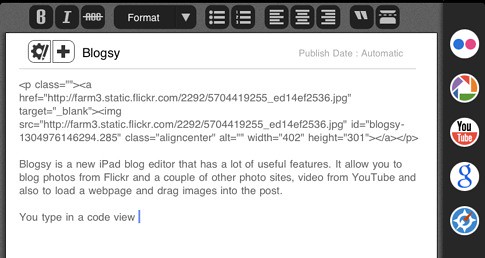
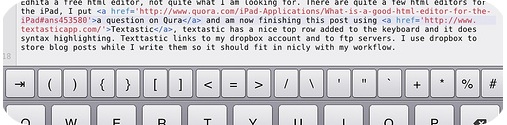
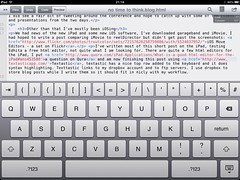
I am using the iPad to write this post & the first thing I noticed is the easy and  straightforward typing and the relative difficulty of typing tags such as <:p&rt; to get to a < you need to hit the number keypad and then the symbols one, switching back to letters and then numbers if you need a /.

At first play the things that the iPad seems best at are viewing and reading tasks, for me email, rss, browsing and quick googles. I may change my mind on that one if I get iMovie or keynote. I would love to see GarageBand for the iPad, it would be great with a touch interface.  It seems faster to check mail by grabbing the iPad than it is to move to the computer.. The speed that the iPad opens and launches apps is very impressive. I spend a fair bit of time reading RSS and google reader works well. I’ve used the iPhone version of netnewswire but as the iPad version is a bit more expensive than I am used to paying for apps I’ve not got that one. Instead i am using google reader and FeeddlerRRS which  is a free reader for iPad FeeddlerRRS uses your google read account too and it seems to work well. I’ve probably read more of my feeds in the last couple of days than the previous week. It is easier to read whole articles on the ipad compared to a phone where I would typically star or bookmark for later consumption. It is also easier to jump to the post and leave a comment.  I don’t think FeeddlerRRS works offline though which was an advantage of NetNewsWire on the iPhone. I could load my iPhone and read feeds on the train without worrying about s connection.

Somethings will take a bit of getting used to. I started this post in Pivot’s mobile interface:

Pivot mobile

b
This is pretty nice but I rsn into problems when I ‘minimised’ the page:

iPad safari  

I was thinking of this as equivalent to tabs but found when I swapped back to the pivot page after copying a Flickr embed code that the page reloaded and lost my text! I’ve switched to Notes to prevent this happening again and started using another note to hold snippets: 

iPad notes

I am also using Flickr to post images rather than uploading them here with TextMate.

 Ipsd apps

I am using 2 free apps PhotoPad to edit pics and the iPhone darkslide app to upload to Flickr. I think in the longer term I’d want a more efficient blogging app or I’d use Mail to post to posterous if I was doing a lot of iPad bloggIng.    

I’d be interested in trying out some of the HTML apps if they were iphone priced rather than the slightly more expensive iPad ones. I am not sure I’ll be editing much HTML on the iPad.    

What is impressive is the easy to use interfaces with all of these apps. I’ve not had to look of help or instructions on any of them. Things just work. The device is surprisingly delightful: the smooth way menus appear or say TweetDeck flips over to display  a webpages link in a tweet is lovely.

I am very interested in seeing how ipads would fit into a classroom and compare use with the iPod Touch. I imagine they would be a powerful shared device, sitting in the middle of a group to be grabbed and passed around better for collaborative work that the Touch. 

I am looking forward to testing the iPad in as many ways as I can think of over the next wee while and seeing the possibilities develop.


  • I listened to EDUtalkr online panel discussions about Scottish education: #1 Glow the day after the live discussion, it really deserves a blog entry to itself, but I don’t have the time. The audio is not great but the discussion is interesting, lots of agreement and shared ground from folk I didn’t necessarily expect to agree. If you are a scottish educator, interested in glow, and have not listened to it I suggest you do.
  • I’ve started collecting html5 links on delicious, troutcolor’s html5 Bookmark, some very interesting stuff going on that suggests that long term lack of flash might not hold apple back.
  • At work I’ve been updating the webpages that support Apple RTC courses.
  • Heard my first cuckoo here
  • Yesterday I went for a wee walk in Glen Douglas, not good weather for photos but I’ve mapped some: Glen Douglas 24.04.10


ipod_Map_comics

As a bit of a google maps enthusiast I love Tom Barrett’s Maths Maps ideas. It looks to me like a nice way to show some ‘real’ application of maths in an engaging way.

I am still supporting/interfering with an ipod touch project (site gone but not forgotten on the Internet archive). This gave me the excuse a few weekends ago to spend some time messing about with the jQTouch — jQuery plugin which simplifies developing webpages for mobile devices. I am experimenting with building some sort of base site/web app for the touch.

One of the nice things about the iPod Touch is that you can add webpages as ‘applications’ to your home screen. Apple provide a way which jQTouch supports of giving a webpage an icon the idea with the site I am working on, the iPod Playground, is that it should provide an easy way to present links etc to the children this avoids typing long urls into the touch, the webpage could be edited

A couple of weeks ago I went over to Glencairn to give the maps a try out. The task I gave the pupils was presented on one of the ‘pages’ of a jQTouch page. Based on one of Tom’s shape problems, the children visited the Jardin du Luxembourg and collected screenshots of different 2D shapes, these were then built into Comics with Comic Touch. We encouraged the children to work in pairs to collect shapes, one child to keep the instructions open the other to click on the link to the map. Then bump the images from the image gatherer to the one with the instructions on his/her screen. The lesson seemed to go pretty well the children accessing the maps, taking pictures and creating comics with out a problem.

I am hoping to get the children to try a Street View problem soon. The Slides from flickr show some of the screens of the jQTouch webpage and a couple of street view images on the touch.

Creating the Tasks

The jQtouch setup is very easy to work with, everything in a ‘site’ is really one page, jQtouch provides a nice standard interface, navigation and animation for that navigation.

It took me a while to figure out how to link to the maps so that I dropped a pin where I wanted it and that pin would have a name on it using the Name and the location in the query seems to work:
Street View Shapes 1

Weeorgangeguy

You need to have a pin on the map to get street view to work. On the iPod touch or iPhone you click on the Wee Orange Guy to switch to street view. As an aside I think street view on a browser uses flash, obviously not on the iPod but it is a very smooth experience.

Apple provide quite a few nice tricks to help web app development. You can set an icon for your webpage, so that if folk add it to their home screen it looks like a ‘real’ app. You can also set a splash screen image which will show until the page has loaded when opened as a web app. I have a wee problem with the Flickr Lunes site I blogged about recently if I set: to run in full screen users cannot hold on an image to copy it to their photos, pretty much killing the functionality of the app, so I have had to lose the splash screen. I’ve been working on an ipod/phone version of my A flickr CC search toy called Flickr Search and Stamp this just lets you stamp a flickr photo with attribution. Like Flickr Lunes it only find photos you are allowed to alter so should keep you on the right side of the copyright fairy.