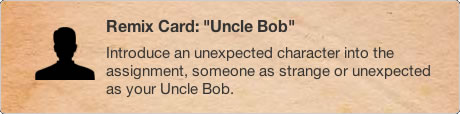
A few days ago I noticed that Alan Levine is mashing up ds106 assignments withThe ds106 Remix Machine. This, briefly, allows you to take an assignment from DS106 and add a filter. Shades of John Davit’s Learning Event Generators.
Remix is using the created media of others – it does not count as a remix if you use your own assignment work. As raw material for your remix, use media from examples created by other ds106 participants for this assignment.
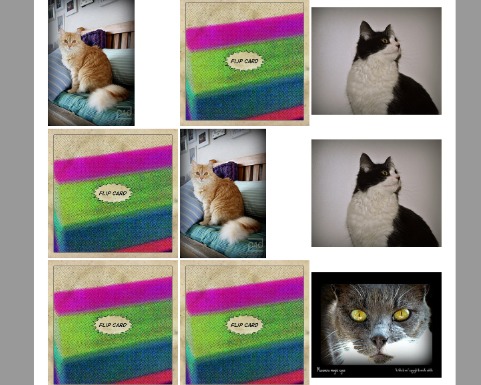
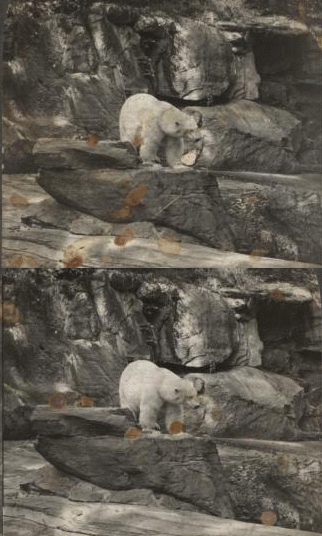
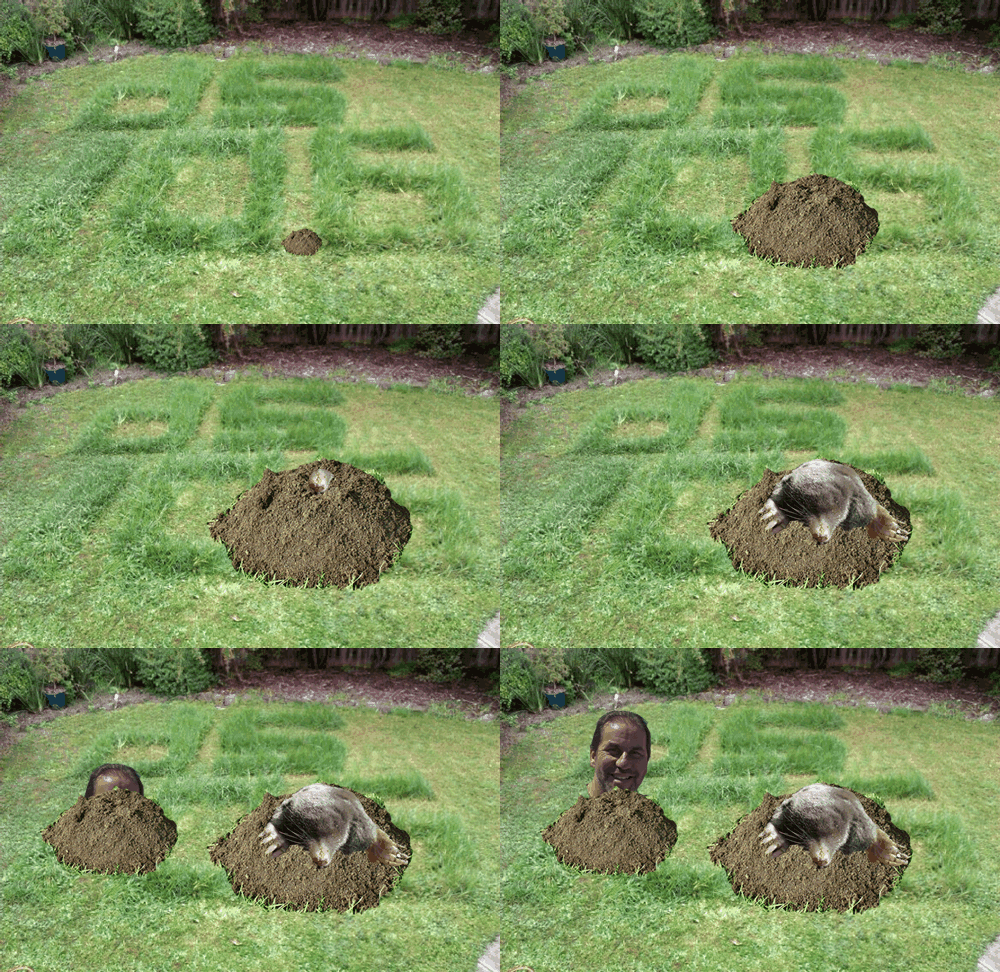
I’ve not ds106ed for a while so, just for fun (is there another reason?), I took one of a series of images from here: ds106: Stop frame photography by Rowan Peter and did this:
This could be a lot better, but it didn’t take long. I am tempted to dust off a copy of flash and make a wack a ds106 mole game.
DS106 has been looking very interesting of late, especially the Kickstarter project which has gathered a pile of money for developing DS106 in lots of interesting ways. (I am in for a t-shirt). This looks like making ds106 increasingly interesting as time goes on.
Next time ds106 runs I am going to give it another shot, set up wordpress blog to make my tagging work a bit better. and have some more fun.
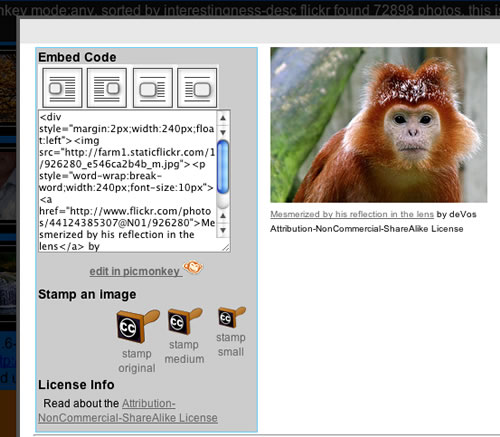
Which made me look again at the flickr CC search toy. A while back I posted about Picnik closing and then about PicMonkey which is a picnik replacement. The nice folk at PicMonkey let me know that the picmonky API is the same as the picnic one, so I thought I’d swap them out. As you can see from the screenshot, if the images found in the flickr CC search toy allow editing (ie NoDerivs is not in the License) there is a link to edit the picture in PicMonkey. I’ve changed the way this works so that PicMonkey will load the medium sized photo with the attribution stamped on it, rather than the original flickr image. Before I was expecting pupils to be able to add the attribution themselves if editing the picture.
I’ve also added a checkbox to the search form to only search for pictures you can edit.
The code behind this, php and javascript is a very messy affair. I intend to work thorough the whole thing sometime and make it more efficient etc.
If you have ideas of how this could be more useful to primary aged pupils please let me know.
It’s dismaying then, to see in a week where we are seeing a huge move forward in the promotion of technology and a fresh look at how ICT as a subject area is designed and implemented in schools, to see digital literacy being used as an interchangeable term for computer science skills.
With the introduction of iPads into the mix as a really powerful tool for curricular ict. I am also intrigued by the tension between this back to programming and the use of ict to support learning. Brief visits to the primary classes piloting 1-2-1 have been exciting and gone a long way to convincing me that this is an important direction for ict in education. Although I hope the iPads are only for consumption myth has been put to bed I’ve been wondering if there are ways they can support programming in education. It has often been pointed out that the reluctance of Apple to allow apps that produce executable code will hinder their use for coding. (As a primary teacher this is well out of my depth or experience but fun as a sort of thought experiment.) Some of the efforts to enthuse pupils and others in coding have started with HTML, CSS and JavaScript. (Hackasaurus and the like links). I though that might be a good place to start. I’ve blogged before about Textastic – Text, Code and Markup Editor with Syntax Highlighting – FTP, SFTP, Dropbox – for iPad, the web page title says most of it.
a challenge of sorts
I though I’d give it a go and create a page or two with some sort of JavaScript stuff. To keep things nice and simple I thought I’d use the Dropbox functionality to publish the pages created to my Dropbox public folder. In a teaching situation this would avoiding FTP uploading.
templates and images
The first nice thing I noticed was that textastic supplies a few basic html templates which gets you off to a nice start. I created a folder in textastic then some files. Next I clicked on the globe to access my Dropbox. You see a listing of a local folder and one in Dropbox it is simple to transfer files back and forth. You can also pull images in from Dropbox to the textastic folder if you want to added images to your web page. This means a trip to the Dropbox app to add photos to that folder from the iPad photos. I could not find an app on my iPad that would let me resize images where I could see pixels rather than manipulating with my fingers, but I am sure such an app exists.
auto complete
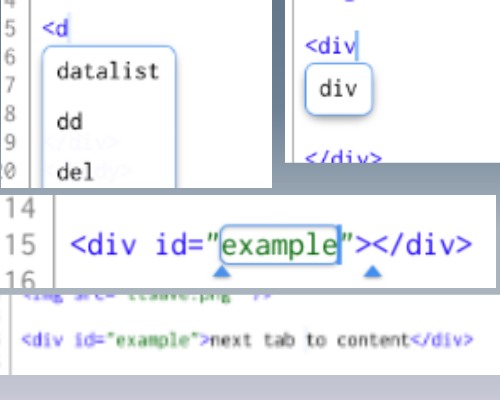
Textastic supports autocomplete in a TextMate like way type a < and say a p it pops a list of possible tags, selecte one and it is completed. The app then put the cursor in a good position, eg between the opening and closing tag of a paragraph to ready to type in the first parameter of a link. With more complex tags it wil select the first edit then tab through the other section indicated by a wee triangle:
update: the first image I uploaded Looked ok on the iPad but was unreadable on my desktop. I’ve replaced it. Image editing for blogging is a bit of a challenge on the iPad, but I am learning. It was pretty simple to create a HTML page and link it to a CSS file in the same folder in textastic, easy to publish both to Dropbox. Textastic allows you to locally preview and it is easy enough to switch to Safari too.
JavaScript challenge
Since I know little JavaScript this should be a fairy realistic test of the iPad as a tool to learn coding. I decided to try assignment 3 from Mashups: Remixing the Web a course from New York University. The assignment was to create a lolcats memory game. I decided to make one with Flickr images. There are a few good hints in the assignment but I need to do a few things: look up JavaScript references on the web, preview and debug. Reference was easy to do by switching to safari and searching. Textastic supports preview and firebug. I also turned on the safari debug console. Textastic supports auto complete for JavaScript too. The result is not a polished or complex piece of work, but I’ve stretched myself a wee bit. And managed to stick to the iPad throughout.
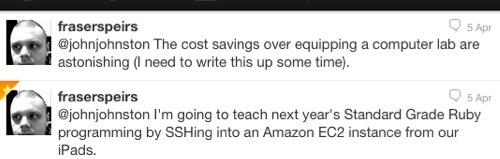
update a couple of tweets from @fraserspeirs who will know a lot more about this than me:
I am sure most of the #ds106 folk will have seen this, but this is a great wee movie with lots of interesting uses of animated gifs. I’ve been a long time disparager of those animated gif clip art things on the web but recently converted to a fan by Jim Groom and ds106.
Tell a story using nothing but sound effects. There can be no verbal communication, only sound effects. Use at least five different sounds that you find online. The story can be no longer than 90 seconds.
When I was working out what to do with this one I seemed to have missed sound effects and no longer than 90 seconds.
This is an idealised walk combining sounds I’ve recorded over the last year or two when walking, some as audioboos.
Starting with traffic, there is bird song & rooks, footsteps through some wet ground, ducks, footsteps on a rocky path, a raven, a hill burn (small stream) finishing with the sound of one lark. It is mostly pretty quiet. it is also about 5 minutes long.
Five minutes of footsteps and tweets
This is as noted above a lot longer than the 90 seconds limit. While this particular example may not hold a listener for 5 minutes I do think that longer audio without speech has its place. Last year when I went to Field Recording at the Scottish Music Centre I noted:
what I’d take away was the quality of listening shown by the audience & presenters. The time taken. Timothy Cooper’s Blast beach gave plenty of time to look at the images: audio can be slower. I am thinking again about Ian Rawes’ “the ravenous eye and the patient ear”, Tim Nunn’s theatre performances in the dark.
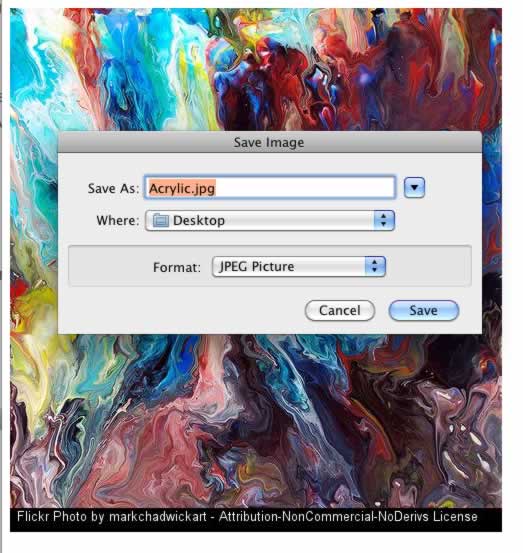
Last week I was in a class doing another setup a blog/eportfolio session using Glow blogs. The process is a bit long winded due to the way glow blogs are set up. Usually there is little time to do much more than set them up and get the pupils to do a quick test post. I usually just get pupils to use a bit of clipart to show tem how to add an image. O this occasion there was a fair mix of machines and operation systems in the room and not all had clip art. I decided to use A flickr CC search toy to let the pupil download photos with attribution stamped on. This worked fine, but there was a little confusion about naming saved files, the file name suggested is stamp.php.jpg as the images, with attribution, are generated on the fly.
This weekend I had a quick google to see if I could find out how this can be improved. I am now using:
To give the files a title derived from the flickr image title. I also found I could cause the image to be downloaded by using Content-Disposition: attachment but decided against that at the moment. Now when pupils right click on an image they should see something like this:
Another alternative would be to show the image on a page with instructions on right clicking to get the save dialog. Again I’ve not implemented that either.
Use Google Maps to create your own custom map that includes photographs of places.
I’ve been playing with google maps and the google maps api for a while so was please t osee some familiar territory for this Assignment.
This afternoon Dorothy, my wife, and I took a walk round Ardinning Loch, we do this nearly every week often twice a week in the summer, It is a short walk that is always interesting. Ardinning is a SWT reserve.
I used Trails on my phone to record a kml and gps track. The kml file was imported int oa new google map. I uploaded the photos it was then just a matter of dropping on some pins, filling in a title and pasting in the url to the image file.
Over the last few year I’ve played with developing a workflow for creating maps like this using the GoogleMaps API. For this I use SuperCard, a mac scripting application. The project allows me to import a gpx file exported from Trails, get exif data for some pictures, iPhone photos have location data imbedded (It also lets me add locations to other pictures by comparing the time taken with the gps file). It then exports a gpx file which I upload to this website and a php file created a map.
Here is the Ardinning Walk map 120303 Ardinning and a whole set of Mapped Walks. In my opinion this has a few advantages over using google maps, you can embed audio & video, and the popup boxes link in sequence. It is also a faster to produce. Obviously it has the disadvantage of being a wee bit trickier to set up.
I’ve a fair number of blog posts going into this in a bit more detail: tagged googlemaps.
But what is it good for?
I think these sort of maps add another dimension to telling a story or presenting information. helping to tell a story in space as well as time. I can see this being incorporated into all sorts of class room projects, either for mapping learning experiences or creating fictional maps. This one The Kidnapped Trail – Google Maps is a great example of the possibilities.
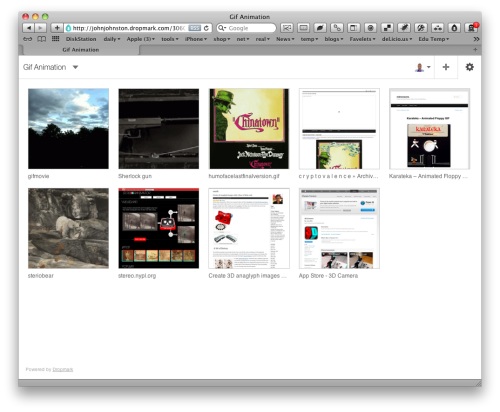
Dropmark is a nice way to collect and share stuff, were stuff can be webpages, images, files, text, links etc. Each piece of stuff is thumb-nailed. Clicking on a thumbnail opens it on the screen and you can arrow-key through the collection. collections can be private, public or shared. You can collaborated with others.
You have 250 MB free storage space. There is a safari extension (and firefox add-on) that opens a side bar on a webpage and allows you to drag and drop urls (where the whole page is captured), images or blocks of text. You can drag files from your desktop too.
Clicking on the thumbnail above will take you to a quick example Gif Animation is a mix of images from the web, webpages and files from my desktop. EDUhack is a collection of links.
Video Test is a mix of Vimeo and Youtube videos, dragging the url dropmark thumbnails the videos and clicking on the thumb plays them browsers window size.
Using dropmarks is pretty intuitive, but there are plenty of written and video instructions on Dropmark®.
Finally each collection has an RSS feed which mean you could quickly put together a podcast of disparate materials. and there is an API in the works.
Create and share animated GIFs and 3D anaglyphs using more than 40,000 stereographs from The New York Public Library.
Since I’ve spent a fair bit of time animating gifs for DS106 of late this was interesting.
Stereoscopic photography recreates the illusion of depth by utilizing the binocularity of human vision. Because our two eyes are set apart, each eye sees the world from a slightly different angle. Our brains combine these two different eye-images into one, a phenomenon that enables us to “see,” ever so slightly, around the sides of objects, providing spatial depth and dimension. Stereoscopic views, or stereographs, consist of two nearly twin photographs — one for the left eye, one for the right. Viewing the side-by-side images though a special lens arrangement called a stereoscope helps our brains combine the two flat images and “see” the illusion of objects in spatial depth.
and
The Stereogranimator joins these latter-day adventures of the venerable GIF, mashing up an important early genre of internet folk art with a nearly forgotten species of folk photography.
You get to play with the creation of the gif, this creates a 2 frame animated gif and alternates between them.
One of the things I’ve really been enjoying about DS106 is riffing off the ideas of Alan Levine (CogDogBlog) like many edubloggers I’ve been following and being inspired by his blog for years. 50+ Web 2.0 Ways to Tell a Story is a standard teacher 2.0 text I’ve also, like many, used Feed2JS on several occasions. A while back I even tried to get a piratebox working after reading of the Storybox.
Anyway it is great to watch Alan teach his ds106 sub group and to follow his hyper activity on his blog. The other day, playing with the current #ds106 audio section he blogged: CogDogCodeAcademy: A Random Freesound Generator – CogDogBlog, this struck a cord as I recently posted #edtechcc Assignment 2 The Sight of Sound using the wonderful Freesound site. Revisiting it and looking at Alan’s code I notice that Freesound has an API. This looked interesting. I’ve now managed to create what I hope may be a ds106 Assignment flickrSounds.
flickrSounds
flickrSounds is a simple mashup that searches Freesounsd and flickr for the same word. It then display the sound and picture. You can reload either until you get an image and sound you like. This can be added to a list, and the exercise repeated. Once you have a set of picture/sounds you can grab an embed code to put hem on a blog. A set of pictures/sounds could create a story, illustrate a quote, saying or slogan.
Example
This is for searching for ds106 4 Life. I clicked through a few images and sounds for each word.
ds106 by electrovert Attribution-NonCommercial License
I’ve built in a Jim Groom busy widget into the webpage, the default search is dog, my example plays off the ds106 4life meme. Stephen Downes suggested in a comment that ds106 might be being over-branded I love ds106 but I think it’s being over-branded, this didn’t go down too well, but has inspired a lot of interesting stuff:, Martha Burtis’ The Cult of 4LIFE a graphic jokey one and I’m Still Chewing on that Over-Branding of DS106 Comment | mbransons and the comments on that post stand out for me.
It was an interesting idea, as someone just joining in I can see what Stephen Downes means. A lot of the DS106 rhetoric is fairly full on, there is a lot of self reference and pride/ego involved. I also could be put off by not sharing a culture with many of the other participants, being much older, having different frames of reference etc. Looking across the Atlantic it there is a very USA vibe. Lots of other folk with different backgrounds would have different reasons, I can see how DS106 could seem a bit hard to penetrate when looked in on. I thought a wee bit before joining in. but…
There are a couple of things that point the other way, DS106 is incredibly welcoming, the instructors are obviously giving a huge amount of time to the course and still have time to engage with the drive-by participants. They even made an effort to include my rather non standard blog RSS feed in the ds106 site. This seems to me to more than compensate for any exclusivity that ds106 might project.
The over-branding can be seen as glue, very important when you are trying to get participants to work together, and is more over more often than not obviously jokey, mocking the course and the organisers. #jimgroomart (eg: Blue Jump Suit #JimGroomArt #ds106:) is just an example, mock the teacher is one way to strengthen the connection, personalise the course, have fun and in weird way honour the amount of effort Jim makes to comment and make folk feel welcome in DS106.
I am also blown away 1 by the delight ds106 participants take in someone else grabbing what they have created and playing with it. The flickrSounds page is an example of this, without Alan’s positive reaction to my first tests I would not have carried on with this and had so much fun learnig a wee bit more JavaScript.
Code Thoughts
The root of this bit of fun was Alan’s post, in it he compares ds106 style learning with the new badges style learning:
Heck, I would rather do my own code challenges than someone else’s monkey see, monkey do. Thats the rub with this stuff, the motivation changes completely when it is something you need/want, versus someone else’s rote exercise for badges.
I commented to the effect that I found codeyear quite useful. I’ve been trying to keep up with the weekly JavaScript lessons there (just 3 weeks behind at the moment), as an afterthought I noted that Freesound have an API. This got me started on flickrSounds. In a way this proves Alan’s point, I’ve spent much much longer playing with this than I have in several weeks of codeyear. Partly because of the intrinsic interest of the task and partly due to Alan’s encouragement (blog comments and twitter).
But… I have messed about with javascript a few times now, but this is much neater code than usual (still horrible but relatively better). some of the improvements came from my experience of another CogDog/ds106 inspired piece Visualize That Quote but partly due to codeyear, where for the first time I’ve had the beginnings of an understanding of the basics of JavaScript.
There is a way to go with FlickrSounds, I need to add the ability to remove sound/pics from a ‘saved’ set and I need to test in IE, I’ve never manages to write any JavaScript that worked in IE first time.
Spirit of DS106
This has not been a ds106 assignment, I’ve not done any this week. I’ve only done one daily create, but I feel pretty much in the ds106 zone this weekend.
Footnotes:
1. blown away is the nearest I can get to the DS106 comment style. This is much less reserved that my usual nice ↩


 .
.