Luss, Argyll and Bute, Scotland
This audio file was orginally posted to AudioBoo(m) with the mobile app. It has been downloaded and posted here since audioboom no longer supports free accounts.

Luss, Argyll and Bute, Scotland
This audio file was orginally posted to AudioBoo(m) with the mobile app. It has been downloaded and posted here since audioboom no longer supports free accounts.
Last session I was lucky enough to be involved with a small ipod touch pilot; Glencairn iPod and blogged about it and various iPod Touch things several times.
 Image Courtesy of Apple
 A few things have made me think about iPod touches in class recently that I though might be worth a blog post.
I’ve been using some new, to me, bits of software on my iPhone which have either classroom potential or some concepts that could be transferred to the classroom.
Wifi Photo Transfer (App Store) is a simple application that turns your iPhone or ipod touch into a web server which displays the photos on the device on a web browser on any computer (or iPad) on the same WiFi network:
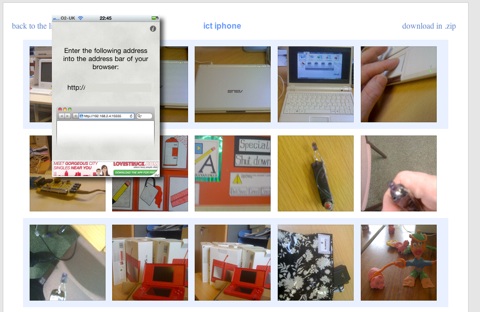
The photos can easily be downloaded to the computers. The application show a single screen on the phone with an IP address that can be typed into your browser to see the photos. Even better with Safari you just click Bookmarks and then Bonjour where you will see your phone listed:
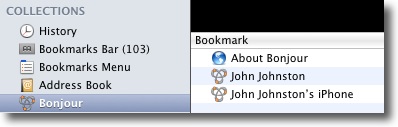
A click opens the webpage with out any tricky typing.
I imagine photos taken with a new camera equipped iPod being distributed to a class full of children without resort to cables or pen drives.
I mentioned The UK SoundMap in the previous post this mashup which adds Audioboo audio to a google map could be replicated for all sorts of sound recording in class. A map full of music recorded in classrooms around the world or some language swapping springs to mind.
I’ve also been using mappiness, the happiness mapping app to record how I am feeling when the app on my phone prompts me twice a day. This sort of collaborative data logging could be done through a google form on a touch.
The other stimlus for this post is the new ipod touch, this adds the long awaited still and video camera and in my mind turns the iPod touch into one of the most useful bits of tech you could have in a classroom.
A few possibilities:
Comparing the £159 before vat price of iPods with the cost of a smartboard or a couple of laptops makes these a real option for expanding technology in the classroom.
An interesting crowd sourced data project UK Sound Map answers the question: ‘What does Britain sound like?’
All you do is record some sound with Audioboo and tag it uksm the boos are moderated and added to the The UK SoundMap. This, of course, reminds me of our EDUtalk project.
Discussing social media and this sort of thing with my daughter Christine we recorded a quick boo of the rather quiet traffic outside our flat.
This could be a nice classroom activity for iPhone equipped teachers and I intend giving it a wee try next time I am working with a class, perhaps a playtime recording would be a good idea.
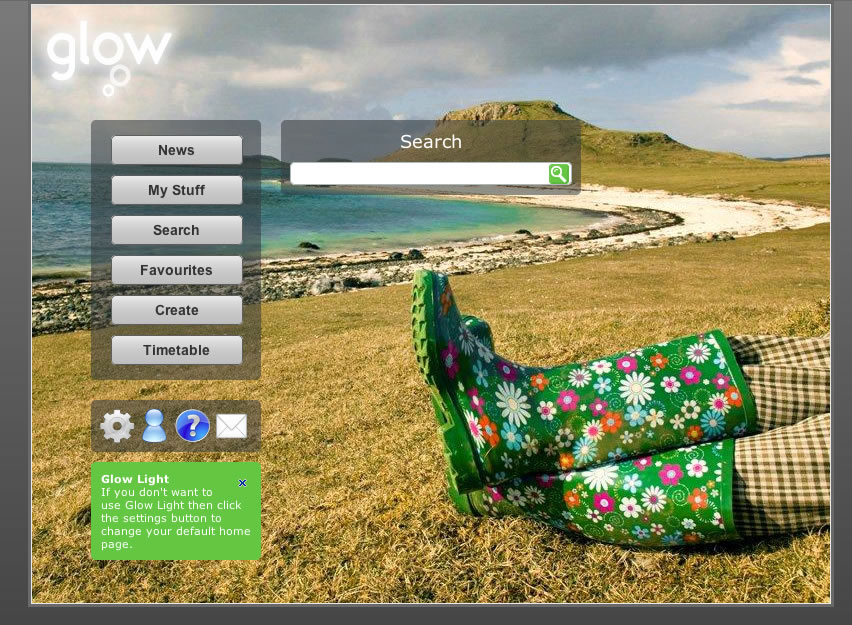
Glow light came online today yesterday:
Glow Light is a new alternative Glow interface designed with a simpler ‘splash’ page. This ‘splash’ page will display a list of user specific links to allow easier navigation to other areas within the Glow portal.
LTS have a video to show how it works:Glow Light – Making Glow better clicking on the thumbnail above will show a full-sized screenshot.
In my opinion this is a great improvement over the ‘Staff’ home page that loads when you log onto glow, much less cluttered and easier on the eye. The branding is subtile and the page has indeed a light feel and it is lighter:
this is the NLC Central Services home page (Staff page) load:

And this is the glow light load:

Showing glow light is just over half the load of the Staff page.
Glow Light also combines the functionality of more than one glow page so it should save quite a lot of time. As a default it comes with 6 ‘navigation’ buttons on the left side 4 ‘settings etc.’ buttons at the bottom and a search box. (see popup image at top.)
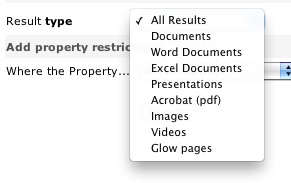
The search is much better than the old glow search. When you get to the results it gets even better linking to an advanced search with allows you to filter by type, and by various properties. The search is pretty fast (on the bases of a few Saturday tests). I never used the old search finding it nearly worthless, this new one looks like it will be valuable.
The six main buttons are as follows:
These are frequent tasks inside of glow and in the past would take quite a few click to get to.
You can customise the lists of buttons from the setting and add ‘link’ buttons of your own to the list. I ‘ll probably turn off the Timetable as I don’t have any classes and the Create button as I would normally work down to the site I am creating while I think about it.

There are 4 smaller buttons at the bottom of the main list: Settings, which opens the glow light settings. Profile, Help and Mail which are self explanatory.
Although glow light is a vast improvement I think it could be made even better. Here is my 2 pence worth:
I like the way the create button loads the groups list on the page and although I don’t think I’ll use it I’d like the favourites button to load my favourites (and just my favourites) in the same way rather than take me to my ‘My Glow Groups’ page.
The other thing that I think could be improved is the buttons. As indicated by the bold & italic text in the description above the buttons have different tasks. Some hide or show elements on the page, some open links and some open links in a new window. I think this is potentially confusing and would prefer something a little more straightforward:
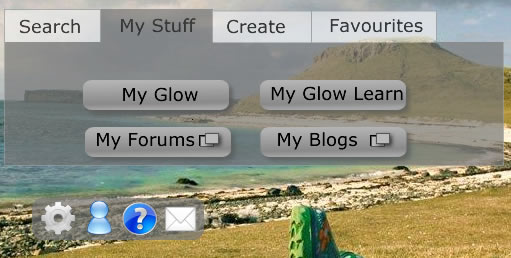
This is pretty quick and dirty but should illustrate the idea: Tabs hide an reveal elements and action buttons show if the link is in a new window or not.
The future of glow is looking a bit brighter, this is a long overdue facelift and perhaps indicative of the way glow is going. It now is starting to look like hub linking out to different services: glow, blogs (these were updated yesterday too, forums, glow learn and mail. The move to using open source, (phpBB, WordPress) familiar web tools is surely a move in the right direction. I hope too glow will move in the direction of constantly upgrading, or perpetual beta that is popular with open source and web technology (google, flickr) generally. Five years ago I had no idea what sort of web applications I’d be using now and I hope that the next 5 years will bring improvements and completely new ideas. If glow was a portal they services could be easily added when necessary we could have phpMotion ( a youtube clone) or laconi.ca (a twitter one) dropped into glows safe & secure environment at the drop of a hat.
Looking at the Glow futures tender notice:
- Interoperatability of Web Services using Open Standards
- Scalable with capacity to expand the scope to serve a wider population
- Glow Futures will apply open standards aiming to achieve unhindered data flow and interoperability. This model will help Glow to constantly evolve and remain modern.
- The current Glow portal and data centre infrastructure is provided by a single supplier. We envisage that the new service could be procured in a series of lots which may be provided by a single supplier or by a variety of suppliers to allow for a flexible and dynamic approach to respond to evolving requirements.
Gives me a fair bit of hope. I just hope we have, in Scotland, enough money to resource it and the hardware to use it.
I’ve been thinking about iPads quite a lot recently and have built up a fair number of bookmarks.:
troutcolor’s ipad Bookmarks on Delicious
I joined in with Tom Barrett’s Interesting ways to use an iPad crowd sourced presentation. Previously I had tweeted that I thought it was a bit early to start this one, obviously I was wrong some good ideas for using an iPad in the class surfacing.
I also bookmarked AirDropper – Request a file from anyone. which lets Dropbox users securely request a file from anyone. Looks very useful.
Today following a couple of tweets from David Gilmour one pointing to YouTube – North Berwick Nursery’s YouTube Channel and the other to the North Berwick Nursery School blog, I subscribed to the channel and found one of my favourite blog posts of all time (now gone, archive link) which I shared with posterous. I love this post as it describes taking a dead mouse and turning it into a learning opportunity.
I saw a tweet mentioning me and the Flickr Search and Stamp for the iPod touch project on Friday. Clicking the link took me to Searching for CC images – SHea iPod Touch Project a post on Ian Guest’s posterous about:
a year long project between two schools, one in the London area and the other in Yorkshire. Students in two classes will be loaned an iPod Touch, for use both in school and at home.
The post contains a youtube video of how to use the Flickr Search and Stamp on an iPod touch and the blog has a lot of other interesting iPod Touch educational information.
I had mentioned this tool in a blog post and added it to the Interesting Ways to use an iPod Touch in the Classroom collaborative google presentation but have not blogged about it here..
The idea was to get around some copyright issues for children searching for images to create with on an ipod touch. Ideally children would save a photo, figure to the attribution and edit the photo to add this. That can be quite difficult and time consuming on an iPod touch so I though up this workaround. It searches flickr, only returning images that can be used and edited under a cc license, it then will produce an image with the attribution stamped onto it in the same way as my flickr CC search toy.
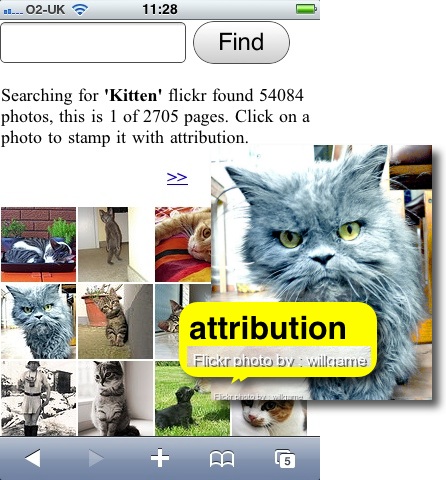
It is based on the iPod Touch Poems webapp I knocked together and has quite a few rough edges. I am sure I could improve the performance, interface & a lot more but it seems to work.
Here is Ian’s video, which should give you an idea of how the app works:
I’ve added a link from the page/Web app to the video to act as in app help so many thanks Ian for this. You can also get an idea of it the app work in this Simulator.
I’d appreciate any feedback on using the app, especially in class and ideas for improving it.
This post is the second in an attempted series about getting started blogging loosely linked to the launch of glow blogs.
Have you see this:
This is an example of a WordPress page, you could edit this to put information about yourself or your site so readers know where you are coming from. You can create as many pages like this one or sub-pages as you like and manage all of your content inside of WordPress.

Portrait Of The Unknown Saxophonist by an untrained eye
Attribution-NonCommercial License
anywhere recently?
The above quote gets me 751,000 hits on google if I search for it. Why? Because it is the out of the box About Page on a wordpress blog.
Most education blogs I know are wordpress ones, and a fair number of them have never edited their About page. I don’t think this need to be seen as self promotion, just politeness to your reader. When I see a link to a blog post and end up on a blog I’ve not visited before the chances are that I’ll be interested in who is writing it and something about them. I click on the About link.
Schools blogs too, I want to know the sector, who the authors are, age & stage and where in the world the schools is.
We are expecting a new batch of educational bloggers in Scotland this session as blogging become simple to set up via glow I am hoping that these new bloggers will add themselves to ScotEduBlogs and I’ll be able to read them and to find out a little about the writers.
As an aside, I’ve twitter set to send me a mail when I get a new follower, often these are folk who have not tweeted much, if I can tell from their tweets and they do not have a description or a link on their twitter page I often don’t follow back.
My own About John page may not be very interesting or even spelt correctly, but it is there.
This is a ‘mac’ post not really aimed at education except in so far as a lot of educationalists seem to be using Dropbox. Dropbox is of course a cloud storage & synchronisation application. Basically dropbox sets up a dropbox folder on your computer and syncs it with one online. You can set up dropbox on several computers and they are all kept in sync. This is extremely useful if you use different computers in different locations. I have my home mac, desktop at work, work laptop, iPhone and the iPad I am typing this part of the post on, all with the same files seamlessly synced. What makes drop box different is that on a computer it’s just another folder you do not need to do anything special to keep it in sync.
If you want to get a dropbox account & give me more storage on dropbox Get Dropbox.
I’ve been using drop box as a working directory for sometime now, as week as a way to view files on my phone and the iPad as well as being able to work on files at home and at work without worrying about taking them back and forward. Recently I’ve started using in a couple of slightly more sophisticated ways.
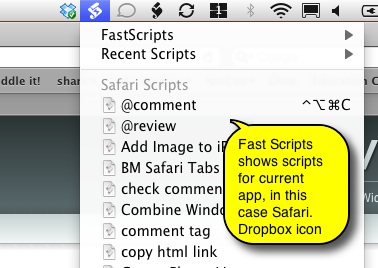
One of my favourite utilities is FastScripts, this is a menubar application that allows you quickly run AppleScripts (it also does shell and other scripts) these can be given keyboard shortcuts and are sorted into application specific lists.
Fox example I often use tiny url to shorten urls so have a script that takes the current URL from safari and puts a URL onto the clipboard. This script has a shortcut of Apple-ALT-control-U.
FastScripts list scripts stored in the Scripts folder in either the mac’s or user’s Library. Inside that folder it organises the different applications scripts inside an Application folder folders:
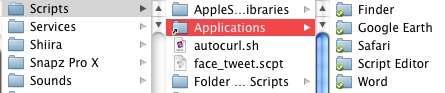
In this case you can see that the Applications folder is an alias. What I did was to move the applications folder to my dropbox folder, I then dragged it back, but with the command and alt keys held down. This left the folder in my dropbox but creates an alias in the Scripts folder, FastScripts sees the files in my dropbox. I can then create the alias in my other macs Scripts folder replaces the one already there. Now when I make a new script on any of the macs it is shared with the other ones and available through FastScripts.
I find that I use plain text files more and more, I write blogs posts, todo list, web pages and first drafts in TextMate. TextMate has some amazing features that are way above my head but I find it a must have application. Some of the files I use often I keep in a folder _notes in dropbox. Also in dropbox is a textMate project. A textMate project is just a easy way to see all of the files inside the _notes folder and its subfolder (power users can do a lot more with projects).
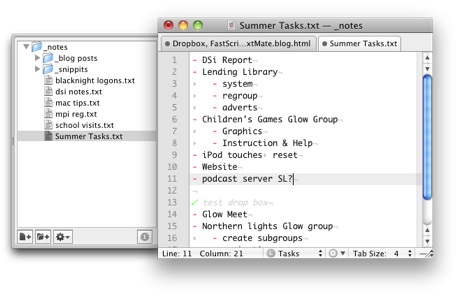
What is great is I can access and edit these files from any of the computers I use and view them through the dropbox app on an iPhone or iPad. I can also use a 59p app droptext to edit these files on the iPad.
I have never really been one for productivity systems, I’ve always like 43 Folders but mainly as a distraction. However, I do like automating repetitive tasks and things that work automagically Dropbox, FastScripts & TextMate fit that bill.
This week I have added five new apps to my iPad and thought I’d post them here.
The whole post was made on the iPad all text ‘written’ with Dragon Dictation.
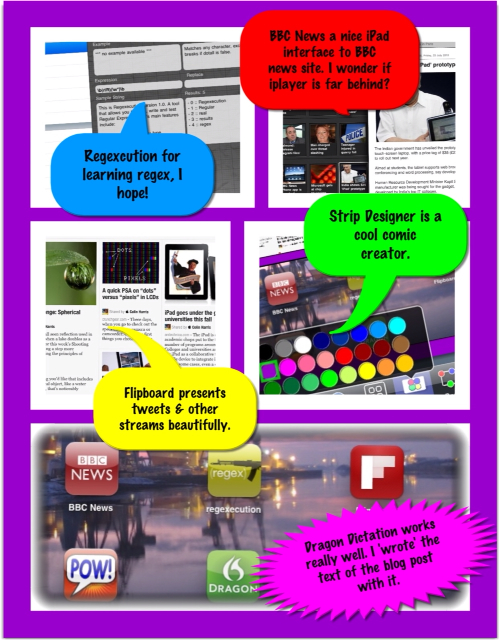
The first is BBC News and this is just a translation of the BBC’s new site for the iPad that it works very nicely. It’s pretty slick there is a series of all news feeds on the left and you could see the articles on the right. You can customise the feeds so I’ve already remove sport and added the Scottish news it seems very iPad friendly and like quite a few designed read and access media in an attractive way.
Another media viewer I’ve installed is FlipBoard which has been getting a lot of attention on the Internet and on twitter. This app pulls information from different sources, Facebook or twitter and from collections and about different things, say technology or entertainment.the app presents these streams in an attractive way. You can to flip through the pages with some pretty effects. What I think is really impressive that is with the tweets from your twitter stream it doesn’t just to show the tweets, if a tweet has an article linked it will present some of the article, with a photograph that will present the photograph. FlipBoard has been a little controversial as it is pulling in content by scraping rather than they’re getting it from RSS feeds. To me this doesn’t seem too much of a problem most of the longer articles are shortened so you need to display the source along with any adverts and branding to read the whole thing. This viewing is done in the app rather than in safari.
The next app is regexecutioner which is an app to help learn about regular expressions. I do occasionally attempting to learn and to use snippets of regular expressions. Hopefully this may get me up to speed. It is a pretty straightforward app were you can see examples and you can take a regular expression and a text block instantly see it’s result.
StripDesigner is more of a creative app. You can see from the screen shots that are illustrating this post that I have used it to present and annotate some screenshots of these application. It’s a really nice ComicLife clone. I tried on the iPhone first there the screen space is a wee bit limited but on the iPad and it just works very nicely indeed. You can choose different layouts of up to five pictures. You can add texts and the other things, adjusting fonts, text size and drop shadows in an easy and intuitive way. I think it would be a great application to use in a classroom and I imagine I’ll be using it quite a lot.
The final application I’ve installed this week is Dragon Dictation which is an amazing application. I have recorded all of this post and it turned into text using Dragon Dictation it is very straightforward to use: you press a record button, you talk, you hit the Screen to stop. Dragon then analyses this (I imagine it sens the audio to a server) and brings back the text. You can quickly clean up and edit the text. I tried it first on my iPhone you can tweet straight from Speech. I then they tried on the iPad and had one crash so made sure to a copy of each section of this post as i recorded six different sections. I had to do a little cleaning up, but given my accent and the fact that there is no training period make this application seem like magic.