@suewaters well that did it:-)

This evening I was having a wee search for World war 2 images for reuse. I hope to be working with a class next term using images as part of there topic work, mashing the images with iMovie. I had a look in the usual places (including http://www.flickr.com/commons/ mostly) but didn’t get what I wanted. Scran have some great phtos but I don’t think we could edit them. So I turned to twitter, with the usual gratifying results now tagged on delicious:

LCC bomb damage maps – a set on Flickr

WW2 Image Album

Flickr: east_lothian_museums’ stuff tagged with worldwartwo

World War II Posters – a set on Flickr

WW2 History – a set on Flickr

NEN Gallery : World War Two

Flickr: PhotosNormandie’s Photostream

ARCHIVES NORMANDIE 1939-45

I’ve also discovered that pivot allows you to display an rss feed in a post, so this list will update as I add more links to delicious.

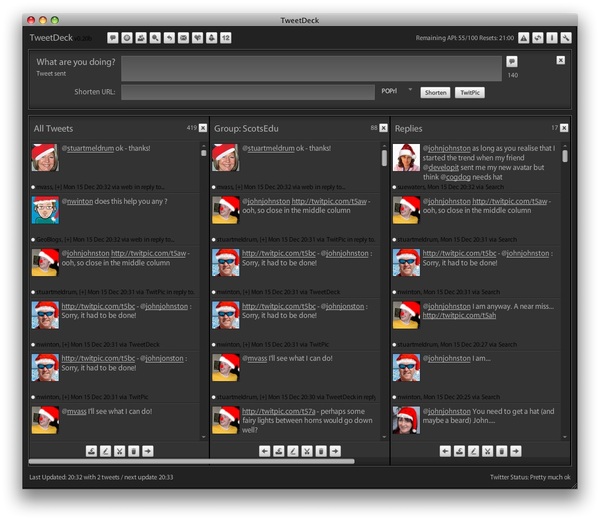
@johnjonston : Sorry, it had to be done! on TwitPic

Thanks Neil

At the same time as I was doing lazy research, nearly everyone else i know on twitter seemed to be playing connect 4 with Santa avatars! @nwinton is busy making Santas out of everyone on TwitPic / nwinton. It is this sort of mix that make twitter special, useful and silly at the same time.

If you have any other sources of World War 2 photos that can be reused in class let me know with @johnjohnston on twitter or for:troutcolor on delicious.

I’ve been thinking of how I’ve used digital camera in class over the last few years. I know this is not a very ‘new’ topic for a post but I think my experience and thoughts are worth noting. I blogged about the use of cameras as part of activities countless times but I want to work out of a sort of practical overview here.

When I started blogging with my class at Sandaig, I was assuming that quite a lot of our visitors would be on dialup and kept photographs on the blog to a minimum. A year later we were adding photos but keeping the size down. At that stage I was often taking the photos and certainly helping loading them onto the computer. Another year on (2006) we had settled for 400 pixels as a good with from the blogs and all of the posts had at least one photo, the children were using MS photo editor to resize the photos.

By the time I left Sandaig I had the children taking photos every day for different purposes.

I know that this is still relatively unusual, in many classrooms it is the teacher, or PSA who takes photos or children use cameras under tight supervision. I think we need to relax that.

First you need a purpose for taking photos, I had a rota of class bloggers, even if they never finished their posts they usually took photos and transferred them to a pc.
We also had a photo a day section on the website How does our Garden go a simple image gallery, were a different pupil would take a photo in our garden each day, rain or shine, of anything they liked (within reason). This activity linked to our eco schools efforts, but its main purpose was to give the children practise in taking photos so that they should then use them in other areas without thinking about the practicalities.

By linking the activity to public display on the school website you immediately have an excuse to talk about appropriate images and responsibility. Children of course want to take ‘silly’ photos of their friends grinning and fooling around, discussing why we would not use these when reporting on a class activity cuts down on time wasting pretty quickly.

The only time it is worth a member of staff taking photos is when the children all want, or the teacher wants them, actively engaged. In these cases the photos can become part of a follow up activity.

Once you have your photos they can be used in many ways. These ares some I’ve used.

  • In a one computer classroom photos of events or activities can be printed as part of a template for children to write reports on. you can do this on the fly as groups of children finish a practical activity.
  • As a stimulus for writing, a slideshow of images, promotes discussion and can be run during the actual writing. If the writing is word-processed photos can be added.
  • For blogging, as part of a post, writing of any type, or as a slideshow made with various online tools (oneTrueMedia example).
  • For comic-life, a great way to motivate those children reluctant to write, for quick sequencing etc, etc. Examples: Eco Ninjas, 3D Shape.
  • To make ‘movies’ on movieMaker or iMovie (with one computer this can be a class activity, each child dealing with one picture, titling and adding transitions, the whole class discussing sound tracks.) individual examples, whole class example.
  • After an art lesson I often had a pupil take photos of all of the work for a web gallery (example), I think I’d now have each child take their own. These could be used for a portfolio, say in powerpoint with 2 stars and a wish, building up a record of all the art produced in a year. This ould be part of the clean up routine, clean brushes, take photo…
  • As a quick and dirty scanner, taking photos of drawn work to incorporate into a report, not necessarily the cleanest looking pictures, but effective: for example.

All of these are pretty simple ideas and the list could easily be extended. What, I think, makes the difference is the attempt to make use of the cameras an everyday activity, owned by the pupils, and familiar enough so that they use technology transparently. Using the images in blogs and wikis etc gives the task an audience and makes it real and purposeful.

Title: FrameByFrame and ScreenFlow

On Friday I took part in the North Lanarkshire ICT co-ordinator’s meetings and the Educational Computer Centre, when I say took part I mean my colleague Ann McCabe did all the heavy lifting, but I did talk to the groups about FrameByFrame a stop-motion animation application for Apple Macs. FrameByFrame is not as fully featured as some applications but it is very easy to use and freeware. There are some good example movies on the FrameByFrame webpage.

I’ve not used FrameByFrame in the classroom although I’ve had children make a few animations (Sandaig Example) with other software. Apart from the chance to make animations that relate to their learning making an animation involves a lot of creative team work and co-operative learning, obviously valuable in the classroom. FrameByFrame will give you a good chance to try out animation without expense, altohugh it lacks titling and the ability to add audio that could be done easily by importing the movies into iMovie.

I’ve made a few quick tests with FrameByFrame and though it might be interesting to use ScreenFlow to make a wee movie of using FrameByFrame. ScreenFlow is an application for creating screen recordings on a Mac. I blogged about ScreenFlow before, but I’ve not used it much since. It looks like the most powerful screen recorder available for a mac, it records the whole screen but then lets you edit the footage, zooming in to areas or windows and a whole lot more.

The following movie is much more of an experiment than a polished piece of work, I did not really read the ScreenFlow manual (there are a series of movies on the ScreenFlow site), so made one or two mistakes.

  • I didn’t really plan well enough and did not realise that ScreenFlow would not let you combine recordings, (you can add more recordings to a recording).I made 4 separate recordings and combined the exported movies in QuickTime Pro. Planning is obviously vital in producing good.
  • a script might help.
  • I shot the animation and recorded it in my kitchen which as you can see has very poor lighting.
  • I relied on the built-in mic on my macbook, an external mic may have sounded better.

After I exported the movie at the suggested 640 x 400 I then stiched them together in quicktime Pro and rexported a few times changing the size and quality of the movie. i then used QuicTime Pros export for web feature to export m4v files and the html need to display the movie. This export seems to do a great job of getting file size down, but again reading a maunal may improve that.

ScreenFlow looks like it will be very useful in helping teachers and pupils use software in the classroom, and I think I’ll spend some time watching the manuals and practising.

On sunday evenings I often take part in EdTechRoundUp. EdTechRoundUp is an informal group of educators, interested in talking about technology. originally planned as a planning meeting for a podcast the meet has evolved into a meeting that becomes a podcast. Planned on the edtechroundup wiki the meeting takes place in a Flash Meeting. Flashmeeting (described as the YouTube of videoconferencing) is a lovely free service for educators to hold online meetings with video, audio and chat elements.

The chats are a lot of fun and a good place to find out about many exciting uses of ICT in the classroom. Anyone cxan add to the agenda on the wiki and anyone can join in. The meetings are often chaired by Doug Belshaw who tidies up the audio for publication on EdTechRoundUp.com.

The audio is recorded not live but from a replay of the flashmeeting by volunteers. I have taken that role a couple of times and used WireTap, as I recall, wiretap pro could be used the same way as wiretap (an older free version) for free but I recently moved macs and downloaded wiretap studio. This worked fine for a couple of weeks and then I got to the end of the trial period. From the information on the WireTap Pro FAQs page I think I could download a version of pro and still use it that way but I’ve found another solution.

I missed the meeting on Sunday but got a tweet from Doug looking for someone to grab the audio. I said I’d do it and then found out that WireTap had timed out.

This is where Soundflower comes in.

Soundflower is a Mac OS X (10.2 and later) system extension that allows applications to pass audio to other applications. Soundflower is easy to use, it simply presents itself as an audio device, allowing any audio application to send and receive audio with no other support needed. Soundflower is free, open-source, and runs on Mac Intel and PPC computers.

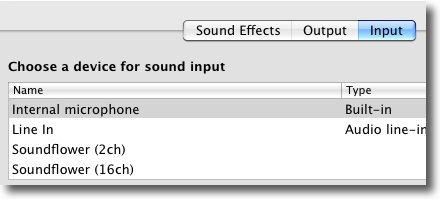
Quick to download an install, soundflower gives you a couple more options in the Sound input and output preference pannel:

All I need to do was to set Soundflowe 2 channel as the default input and output, I then replayed the flashmeeting and used Audacity to capture the sound.
SoundFlower comes with an app Soundflowerbed (I’ve not tried it yet) and has a lot more features but this did the trick for me.

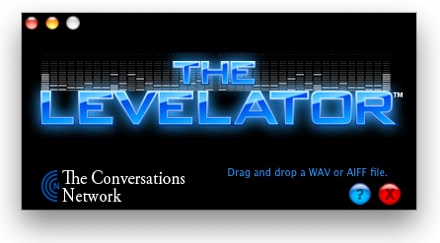
The other bit of software I used was The Levelator, once I had recorded the audio I exported it as a wav file and dropped that file onto the Levelator:

It’s software that runs on Windows, OS X (universal binary), or Linux (Ubuntu) that adjusts the audio levels within your podcast or other audio file for variations from one speaker to the next, for example. It’s not a compressor, normalizer or limiter although it contains all three.

The Levelator smoothes out the ups and downs of volume which you get form several folk talking in different places with different microphones to something that is surprisingly clear.

After that I just need to export the output from the Levelator to an mp3 and send it to Doug via dropbox. I had a listen to the audio on the way home from work yesterday and the audio sounds not too bad, the content sounds very good indeed, and I am sorry I was not there, well worth a listen once Doug sorts it out and put it on EdTechRoundUp.com.

I can also recommend joining in the flash meeting anytime you are free on a Sunday evening, a very welcoming space and I’d guarantee that you come away with a few interesting ideas or thoughts. Details are always on the front page of the wiki.

On Thursday I visited Cardinal Newman secondary again. Eileen Mallaghan PT computing introduced me to English teacher Patrick Mooney who is working with iMovie.

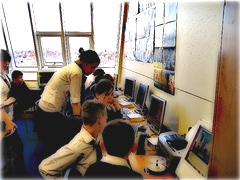
I was luckily enough to be able to visit two classes, one year one and one year two, and talk to Patrick and the pupils. Both classes were working on speech but it quickly became obvious that there was a lot more involved. The pupils task was to do a bit of research on a individual and talked about them. Patrick explained that the project had allowed pupils who had difficulty in staying focused during English lessons to become much more involved with their learning and motivated them to finish the work. In between the research and the ‘talk’ there was a pile of writing, co-operative working, ict, assessment (for learning) and the production of a movie for final assessment.

Patrick and the pupils explained the workflow. Starting with research, online and in the library the pupils gathered facts and images about an individual they were interested in. There was an impressive range of characters, Ann Frank, Bill Gates, Walt Disney, DJs, footballers and pop stars. Although the pupils worked on their research and writing individually they then worked in groups to film and record the talk and then work in iMovie to remove the video and add images to their movies. Just watching the pupils it was obvious how engaged with their work and their partners they were, eyes on screen, fingers pointing and a hum of quite conversation. When I spoke to the pupils they were all enthusiastic about working in this way and could identify many of the things that they were learning, most mentioned helping each other and being helped and the benefits of working in groups. Many appreciated the difference between talking to camera and talking to a whole class. Patrick was very clear on the improved motivation and discipline in the classes. He is cascading the practice to other classes in the department. The pupils were already talking about using iMovie for another project. At the end of one session we watch some of the finished movies, the children were all attentive and appreciative of each others movies. Apart from the ease with which the children were handling the software there was a nice atmosphere in both classes all the pupils seemed to be focused.

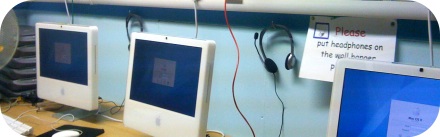
Patrick made the point that iMovie was perfect for this sort of work, he had used windows and moviemaker before but felt it was not as suited to the task as iMovie. Previously a pc user he is now converted to mac. The children were obviously at ease with both platforms, the classroom had a trolly of pc laptops, 4 mac minis and a few macbooks in evidence.

In the past Patrick has managed the project with one mac and was in no doubt of the practicality of the project with only one computer. It was great to see ict embedded in learning in a way that felt natural, the pupils found the ict element exciting but had been introduced to it in a way that the tech did not get in the way of the teach and I look forward to hearing more about Cardinal Newman’s use of ict in there classrooms.

One of the things I am missing about not being in the classroom at Sandaig is the day to day updating of what feels like my baby, the Sandaig Primary Website and it associated galleries and blogs. I was a wee bit concerned that the blogs would grind to a halt, but it looks like I need not have worried. One of the Staff, Mrs Wright, has developed an interest in iMovie and starting with video of her own primary 2 class has organised some primary sevens to film various school events for the blog. The primary sevens have been blogging their class work and some weird pictures. On the train yesterday I was delighted to see a note on the otters blog pointing to some WWII Cinquains on the poetry blog (you might like to have a look and leave an encouraging comment).

Mrs Crum, a PSA ,has taken over the Pictures from Sandaig gallery and seems to be adding content much faster than I ever did, she also provides support for ICT round the school and oversees the blogs. Martain the peripatetic music teacher has been keeping the Sandaig Jukebox up and running with new GarageBand creations from the children. I wonder if by being, in the words of Ian Stuart, ‘just the man’ I held back the spread of the use of the site at Sandaig to other members of staff?

It is quite strange watching this happen, a bit like seeing my daughter leave home for University. Like Christine it looks like blogging at Sandaig and doing very well without me. I am still paying attention but obviously am not necessary to progress.

Yep it is another iPhone post. For the last 3 weeks I’ve been spending two forty-five minute periods on the train almost every weekday and I have been finding the iPhone very useful. I’ve downloaded several games but as expected I’ve not really spent much time playing them, I just do not seem to be a gamer of any sort. This is what I have been using it for:

Listening to podcasts: mostly booruch so far, I’ll be adding a few more subscriptions and listening to podcasts more often; I lost the habit a while back but this is a good opportunity to pick it up again.

Mail I only have one account synced with my phone, but I’ve been able to deal with quite a few emails on the go and keep up with a couple of lists.

RSS feeds: I use NetNewsWire on my home mac, one at work and my iPhone. The app syncs beautifully between the clients. NetNewsWire’s interface is famous and the iPhone app lives up to its bigger brothers reputation. It is simple and easy to use. Rather than just read posts I tend to use the Add to Clippings feature this results in the posts ‘clipped’ being added to the clippings folder in the desktop application the next time it is synced. This is a great feature that I hope to exploit even more. A while back I used to post a regular set of link to interesting blog posts to the Masterclass forum, I’d collect posts in NetNewWire’s clipping folder and then get the links out via appleScript to add a few comments before posting them. I am hoping to start doing something similar soon. Collecting suitable links on the train will help. I usually sync NetNewsWire on the phone before leaving home or the office but syncing on the move is reasonably quick. Another useful feature of NetNewsWire is that you can delete feeds from the phone and specify that they will still be synced to your desktop, this means I don’t clog the iPhone app with really busy feeds.

Twitter: there are various views on the utility of twitter, I put it squarely into the useful pile (maybe a venn diagram with silly and fun would be better). On the desktop I’ve used Twitterrific and more recently I’ve become a TweetDeck fan. On the phone I’d settled on the add supported version of Twitterrific which has the advantage of being able to tweet locations and upload photos to twitpic and tweet that. This week I’ve been using iTweet a wonderful web app with browser and phone interfaces. Due to it being a web app and having landscape mode I am finding it better for posting tweets, unfortunately being a web app it can’t access locations or photos. Again saving for later is a useful feature, with twitter I do this by favouring tweets for later, usually ones that link to elsewhere on the web.

Video: I’ve also been watching a few videos notably the Ted Talks my attention span for watching video on my home mac is short, but I’ve found that I can settle down to watch Teds and other video content on my phone on the train.

What I do not do much of with the phone is type, twitter’s 140 characters are fine and short emails are ok, I’ve installed EasyWriter, which allows landscape emailing to help with my fat fingers. It might be useful to have some sort of wireless/bluetooth or connected keyboard the Apple wireless keyboard works on the N95 so it would be nice to have something similar on the iPhone, I could see me banging in a pile of text on the train, to be edited and corrected later on a desktop ideally a small foldable keyboard.

Another interesting app that I’ve just bought (59p) is voiceNote, this is yet another voice recorder, but what I think is its most interesting feature is it’s ability to email the audio as an mp3 file, this means it could be used for podcast by mailing the mp3 to posterous unfortunately the emails are sent via voiceNote and have voiceNote as the email address, so do not arrive on your posterous if you send them to posterous@posterous.com. What works is to send them to your phones email address and then forward to posterous, not too much trouble. The audio quality was not great when it arrived at my iPhone Podcast 2 but it is a pretty simple way to podcast, I mam not sure how well it work outside wireless range.

What I would like to see is an email app that could email, photos, audio recording and location and to be able to use that to post to posterous (it would be nice to do video too). As mentioned above the Twitterrific application can grab locations and tweet them and photos and tweet them via twitpic so it should be possible to have that sort of functionality in mail.

I’ve have now been working as an ICT development officer for three weeks. At this time I can only say I am a long way away from being useful, there is a lot to learn. A lot of the work of the development officers is in regions outside my experience. I am trying to get up to speed on lots of different areas.

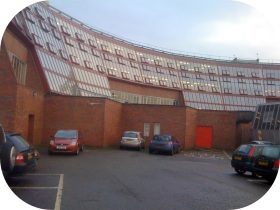
I had a chance to be on slightly more familiar grounds on Thursday when I was invited to Cardinal Newman High School by Eileen Mallaghan, PT computing, to have a chat about podcasting. First I had to find the school and my ‘just out the wrappers’ satnav nearly got me there. Luckily I had been told that the school had a unique, can’t miss it, appearance and arrived on time.

Eileen is carrying out some interesting work using iPods with her pupils and planning more. Last session she was working with two disparate groups of children one studying for their Intermediate 2 and the other higher. To allow the children to review instruction while she was teaching the other group Eileen had created a set of video podcasts which the pupils accessed on iPods. She told me that this had a great impact on the children involved, the pupils obviously were really engaged and supported in their learning allowing Eileen to concentrate on direct teaching. Eileen has also started creating podcasts for a polish speaking child who has very little English. She created a set of slides in keynote, exported them to quicktime and then added pupil produced audio. We discussed and worked out a workflow simplifying the process by recording an audio narative in keynote and exporting to a quicktime movie, iTunes can then easily convert to .m4v files suitable for podcasting. A small group of pupils is being set up to carry out the whole process.

The next step will be to get the files for the computing pupils onto the school website allowing home access for preparation or revision. North Lanarkshire use FirstClass to provide mail, communication and websites( among other things) for their schools. I have never used FirstClass before arriving in North Lanarkshire and am a long way from understanding all of its functionality. FirstClass has the easiest method of producing a audio podcast I have seen (more on this later I hope). I could not see a way of producing and presenting a video podcast directly in FirstClass using the iPod friendly format .m4v files. The simplest way would seem to be to use blip.tv, this produces a nice looking player (I’ve an example on the Embed Tests page here) and an itunes friendly feed. Eileen and I worked through a quick test and she tested embedding in FirstClass. We should see some files appearing on the Cardinal Newman High School soon.

Eileen also described some of the other ict work being carried out in the school including a moving image project and ringtone creation by the music department using GarageBand. This again has had very motivating effect on pupils and listening to the results I was surprised at the sophistication of the music.

Eileen had a ton of other exciting ideas and I am going to arrange to visit again when I can see some of the activities in action and talk to some pupils. I was slightly nervous on my fist solo visit to a North Lanarkshire school and out of my comfort zone in a secondary school I am now looking forward to discovering more examples of good practice in the future.

I’ve occasionally blogged about my use of video in the classroom here before but I thought it might be worth pulling some of the ways I’ve used it together into a more theoretical approach than my usual ‘get excited, try stuff, fall over, pick myself up and make it work’ way of working with technology. So this post came be seen as how I would have organised it if I was smarter approach, the examples and practice are real, but no necessarily in the right order.

Tools

A few years ago as part of the masterclass program I was given a DV camera. This was well used for making movies and stop motion animation but I’ve since come to believe that a simpler camera and working on smaller (much smaller) videos is a good approach to take in the primary classroom, integrating the use of video into lessons rather than making the video the focus. Over the last 3 years I’ve been using the video capabilities of digital cameras rather than a ‘proper’ video camera. I guess the emerging flip style cameras could be used in this approach. We have used our ‘good’ camera a Olympus: SP510 Ultra Zoom and my own Fujifilm FinePix A345 and well as many of the Sandaig set of Fujifilm FinePix cameras which are slightly later model than mine. My Fugi and the Olympus do sound, the newer Fugis that we had do not. The Olympus does 640 x 480 the Fugis 320 x 240 video.

As for editing applications I’ve used iMove, of various versions, MovieMaker on windows, and quicktime pro to get a very quick and dirty movie published. Given my choice, for this sort of movie, I’d now use iMovie ’08.

Starting Simple

The first movie we made this session was a whole class effort, a series of photos were taken and then the children added there picture and gave it a title.

We took the photos in half an hour in the morning, got one child up and running with how to add a photo and a title, that child supervised and help the others to add their photos in the afternoon and we finished by choosing and adding some music and credits

Next it seems a good idea to let them edit a movie from a pile of still images. working in small groups they select which photos to use, add them in sequence and titles, credits and sounds. With iMovie it is simple to create a folder in iPhoto for the pictures the children should select from. In iTunes I kept a supply of short garageband creations that children have previously made and some creative commons music, which allows us to discuss copyright and keep everything simple.
All this lesson does is get the children familiar with the software, think about media selection, ordering events to tell a story and get a bit of practice in collaborative working. A school trip or event, say sports day are fine for this sort of introductory event. My class made some this session: Ayr Trip Videos using a bunch of stills and some clips all taken with the fugifilm cameras.

Next Steps

The children will now have a bit of an idea on how to edit video, and a couple of experts who can be relied on to help others should have emerged. The advantage of using digital still cameras and iLife (iMove, iPhoto and garageband) is the easy workflow, plug in the camera and import, the pictures and video are all there in iMovie when you want them. Having said that I found children can use Movie Maker very well too.

The idea is now to start incorporating the technique into regular, rather than ict, lessons. I’ve made two main sort of short movie in my classroom, whole class movies and movies made by individuals, pairs and small groups. The whole class movies can be made of short sections, usually stills which individual children can add voice and text to, this Garden Lunes one is a recording of children reading their poems over photos of them writing the poems on the paving in the school garden.
The other use I’ve made of these wee movies is as a way of recording science experiments, these can be assessment evidence that does not require pencil and paper. In the Gears movie I had challenged groups to film and explanation of a gear train that would need to extra text, after the groups had made their models we quickly, as a class, added the very short fragments together with QuickTime Pro and posted them to the blog. Last session I used a wiki to challenge children to carry out various science experiments and they used the wiki to report their findings they were allowed to use text, slideshows, audio or video to record their findings for example Ruler And Railings and SoundTravels-Chipmunks. I think that this use of video give children an alternative and valid way of recording experiments.

Publishing

I believe that publishing a record of class work is a valuable experience, making tasks ‘real’ and adding to their purpose I’ve experimented with various ways of getting video onto the Sandaig website. At one time I made a flash video player for uses on the Sandaig Television blog but converting a movie file to a flash video format is not something I’d expect children to do in the classroom, too long and boring so I tended to publish those file after school. I then created a simple form where we could add links to the movie and an optional splash screen that would produce quicktime code on the blog, children could put in a username and password, upload a video and get the code for the blog or our wiki, this produces this:

More recently I’ve experimented with edublogs.tv which allows you to upload video and provides embed codes for example Primary 2 Sandaig Tour

I’ve also tested vimeo and blip.tv both produce nice flash players. You can see examples on my Embed Tests page. I am leaning towards blip as a solution as you can upload m4v files and blip will give you an iTunes friendly rss feed that will play video on an iPod, quick video podcasting.

Difficulties and Drawbacks

Editing movies is pretty straightforward, I had a bit of trouble when working on the sound and light wiki as I was only working with that class for one afternoon a week and the children didn’t always finish there editing, I had not trained them to import the movies either and this session I worked harder on that. Uploading the movies gave us trouble sometimes, we spent a lot of last year with an unidentified network problem which resulted in a lot of frustration. Children can get a bit wrapped up in playing with the toys and forget the purpose of their movie.

Before I left Sandaig this session I had started on a better footing, following the steps above, with the idea that the technology should be transparent, allowing the children to get on with being creative with language, creating evidence of understanding or carrying out the learning task and feel that this small scale movie production is a valuable tool in a teachers toolkit.