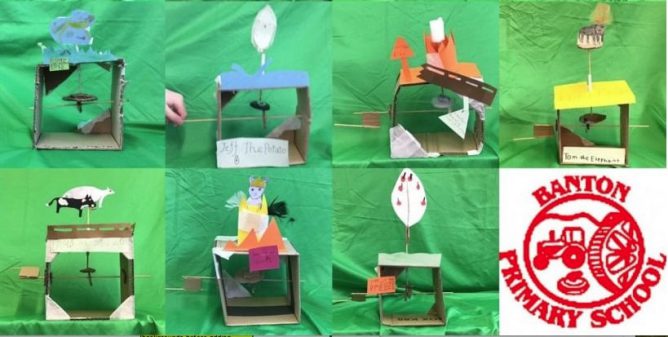
At School we just used @TinkeringStudio’s Cardboard Automata project to do some ‘cardboard engineering’ I was pretty pleased with the way it came out. I was fairly prescriptive with the first mechanical parts and gave almost no advice for the creative bit.

Working with a multi-composite class made this pretty interesting. If I’d just had p6-7 I would have probably given them the instruction sheets and let them get on with it helping where needed. As it was I managed to split work into sections and gave verbal and demos for each without, I hope, frustration the older children too much.

We managed to incorporate a fair bit of maths (measure, division, shape) along with skills for work, problem solving and creativity which I think justified the time spent. I hope to try out some of the other TinkeringStudio projects.

There is a quick video of some of the finished results on the class blog.

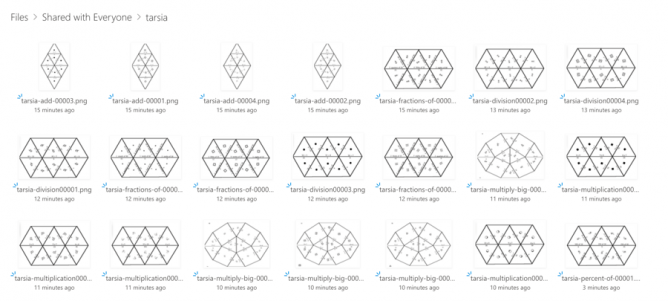
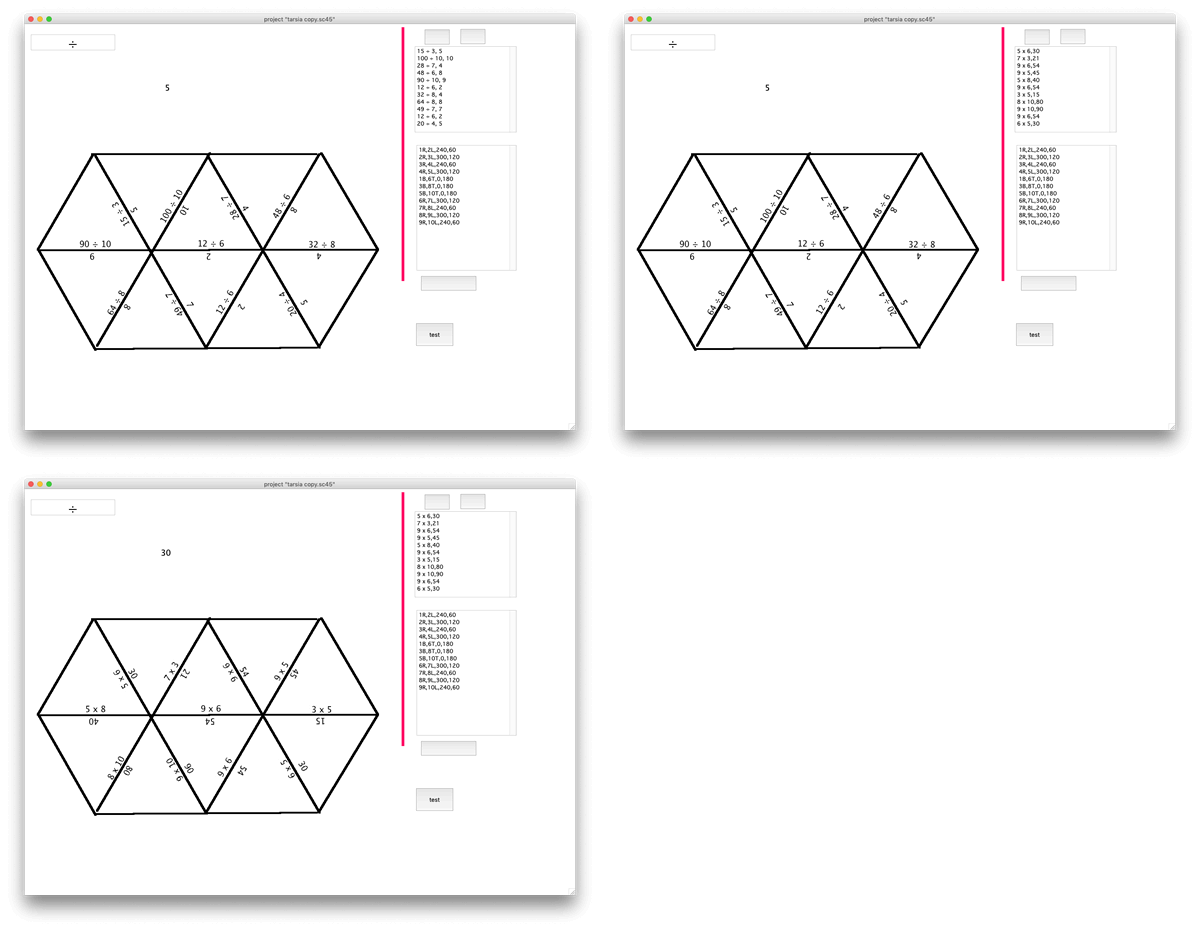
I’ve got a wee system for making simple Tarsia puzzles, not particularly beautiful, but quick. I am putting them in OneDrive as I go in case they are useful. Tarsia A few primary maths ones to start with.

I don’t seem to be able to link to a grid view…

Replied to Micro:bit Educational Foundation on Twitter (Twitter)
“We’re delighted to launch our new #microbit coding platform, created with @Nominet, including new resources & #microbitClassroom - a unique coding space for 2 minute lesson setup! https://t.co/B7It8jPyjs #edtech #edchat #STEM #coding”

micro:bit classroom
This looks as if it might be a really neat idea, local storage, no sign-in for teacher or pupils. Download everything and resume session later.
I am wondering if it will, now or soon, work with the iOS micro:bit app?

There has been discussion of the difficulty of discovering UI features on modern Apple Devices vs Classic mac on apple-centric sites, to which I was nodding my head. Today I notice a pupil’s screen, split view and split undocked keyboard. Features I don’t use and didn’t teach.

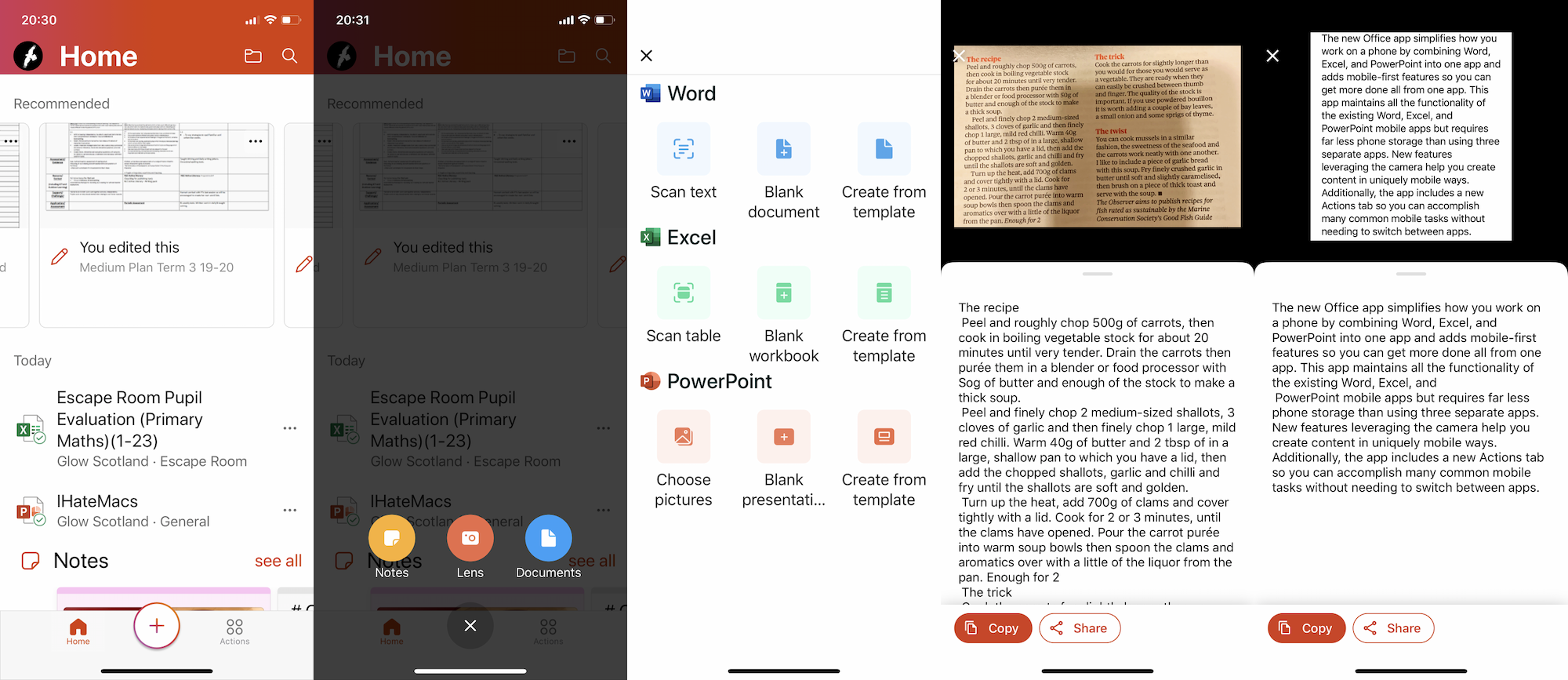
Office for iOS

The new Office app simplifies how you work on a phone by combining Word, Excel, and PowerPoint into one app and adds mobile-first features so you can get more done all from one app. This app maintains all the functionality of the existing Word, Excel, and PowerPoint mobile apps but requires far less phone storage than using three separate apps. New features leveraging the camera help you create content in uniquely mobile ways. Additionally, the app includes a new Actions tab so you can accomplish many common mobile tasks without needing to switch between apps.

Works with Glow’s O365 education accounts.

I don’t use office apps on my phone very often except for office lens.
This looks like an interesting development.
The quote above was grabbed with the Image to text function. This seems less powerful than Lens (no immersive reader) but allows you to copy text without a trip to OneDrive/Word which is handy. For my use, as opposed to pupil’s, it should be more useful.

Here are some tips for speeding up the process of making simple posts to a Glow Blog

Preparation 1. The Post Editor

One of the nice things about the WordPress Post Editor is you can customise the elements that you see on the screen.

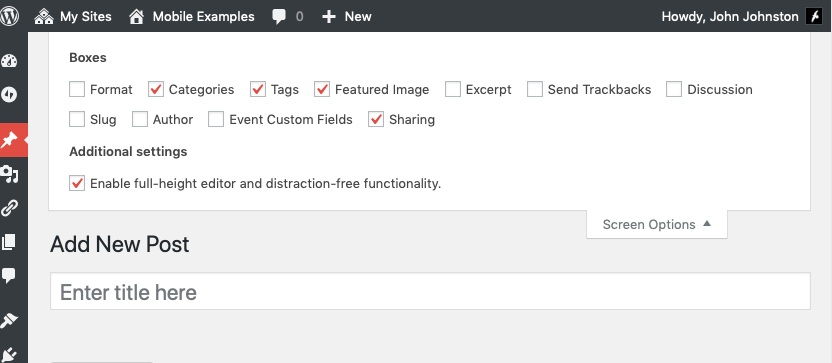
Blogs Post Screen Options

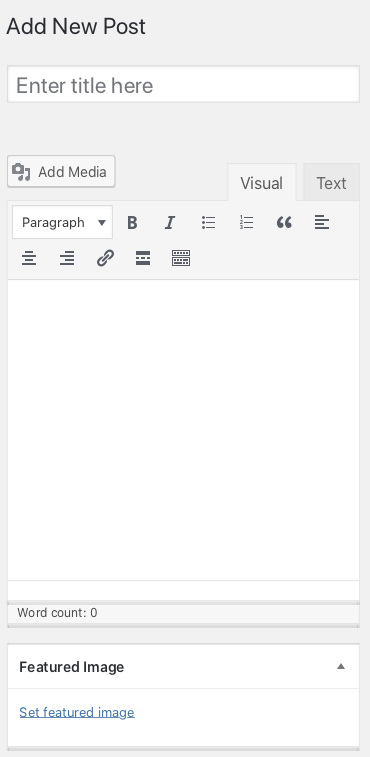
To make my posting simpler in mobile I’ve removed some elements and dragged the Featured Image section to the top of the right hand column. This makes it appear right under the post content in the mobile view.
Blogs Post Featured
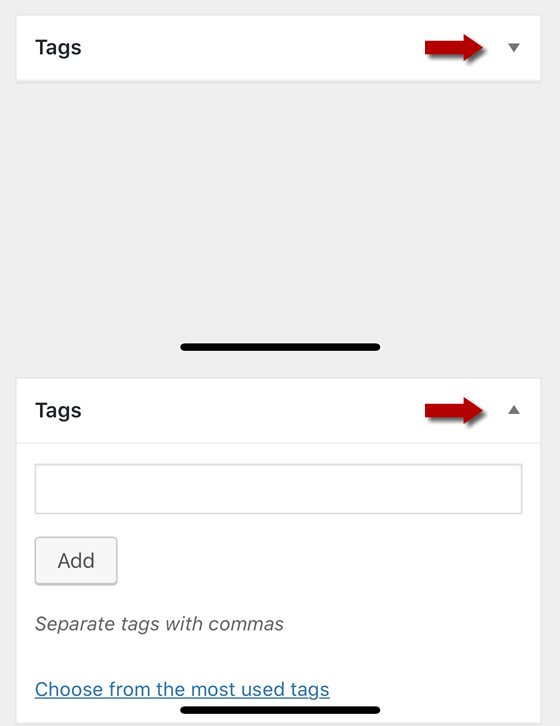
You can also collapse section of the editor you don’t need all the time, I’ve notice my pupils do this when using their e-Portfolios.

Preparation 2. Bookmark New Post

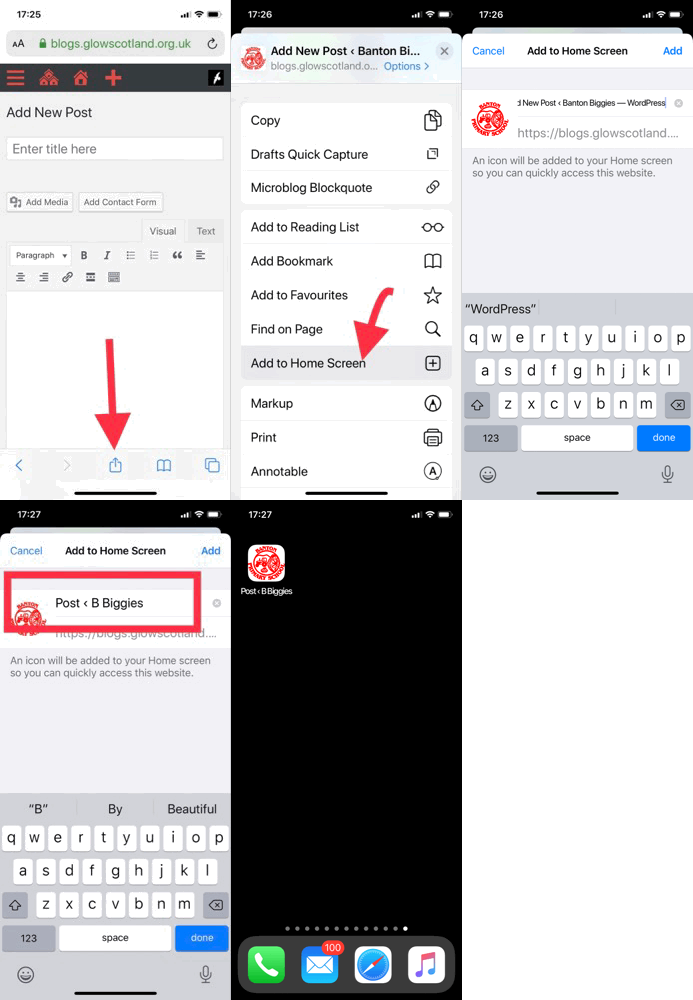
On my phone I’ve bookmarked the New Post Page on blogs I want to post to.

New Post Add To Homescreen

Im my case I’ve saved it to my home screen so I don’t even need to open my browser and go through my bookmarks.

This means that I can go straight to the new post page. If I am not logged onto Glow I am taken through the RM Unify password screen first. I use the save password facility on my phone to speed this up.

Featured Images

Editing a post with images and text can get a little messy, and therefore slow, on mobile. If I want to make a quick post, I don’t put the images in the editor, but use the featured image feature. This adds an image, typically, to the top of your post, and keeps it clear of the text.

Putting it All Together

Using my home screen icon, saved password, simplified new post page and a featured image means I can post a twitter sized post and picture in around 90 seconds.

Twitter too

In case you are missing the interaction and publicity of twitter you can of course auto post your blog to twitter using several free services, dlvr.it, IFTTT and Microsoft Flow (using your glow account.)

Replied to William Jenkins on Twitter (Twitter)
“ Tried to get educators to adopt @Declara in 2015/16 and @Giveandtakeinc since last Christmas. ...In my experience It's a challenge moving edu folks to other platforms.”

I don’t want to move educators. I’d like to spread the understanding that platforms that you pay for with your attention, and then that attention is manipulated, may not be the best place to direct our pupils data and attention.

A start along that path might be to think of a blog that you either own and control or is owned by a benevolent entity (Scot Gov in this case) is the best place to store your data, memories etc. From there, they can be sent out to social networks.

Ideally, IMO, there would be a benevolent network or system that would eventually work well enough to replace commercial but free, services.