My last post was review of my 2014 on Flickr, this is a quick list of some of my other online lives in 2014:

John’s World Wide Wall Display, this blog

57 blog post here this year. My favourite is probably RSS Serendipity. 57 compares to about a 87 post average over the last 10 years.

  • 2005 – 91
  • 2006 – 205
  • 2007 – 135
  • 2008 – 55
  • 2009 – 45
  • 2010 – 49
  • 2011 – 83
  • 2012 – 92
  • 2013 – 63
  • 2014 – 57

106 drop in

Another 20 blog posts on my DS106 blog. Can’t choose a favourite there, my 106 posts have an even smaller potential audience than here, but I love them more for that!

I also knitted a few webpages linked to DS106, DS106 GiF TV is by far the most interesting and fun (if somewhat incomprehensible ).

Ds 106 gif tv Skull

Pinboard, link collection

1561 pinboard links Pinboard: bookmarks for johnjohnston my delicious replacement, a lovely service.

JJ GiFs
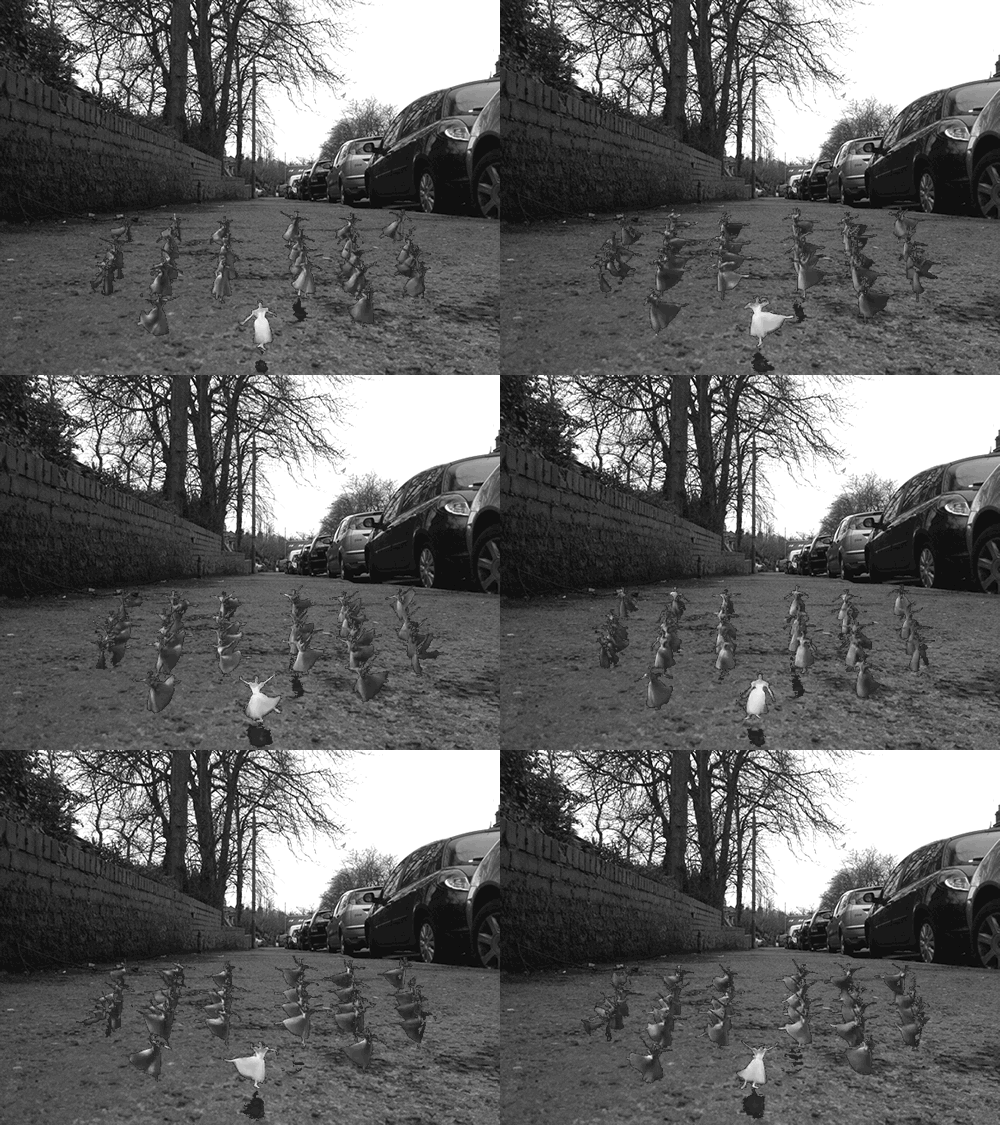
103 gifs posted to tumblr jjgifs, March with 22 gifs was the busiest, not sure what I was thinking of…

Two of my gifs were featured on the Tumblr radar, skewing my stats somewhat and making my tumblr output the most popular of my online publications by a long way. It was quite amusing watching the likes pile on, as far as I can see the radar is pretty random but this many likes cheered me up at the start of 2014.
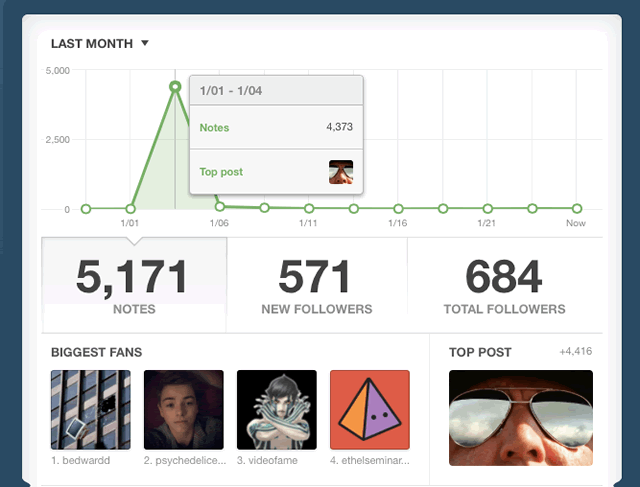
Tumblr Stats 26 010 2014

Youtube

17 Youtube videos posted: YouTube John Johnston the most popular with 340 views was Journey into DS106 tdc762 most of the rest were ds106 inspired too.

Vimeo

6 Videos posted to vimeo, I think of vimeo as a bit more seriously than youtube. 4 out of 6 of these were for the day job.

Edutalk

We produced a fair number of podcasts over on Edutalk this year, it is a great experience, we have had some lovely conversations and learnt a lot talking to all sorts of folk. Lots of interesting plans and possibilities for 2015.

New Spaces and Places

I’ve used a few new services in 2014: Known, What do I Know?; Fargo (I started playing with Fargo in 2013, and have blogged about it a few times); other software from Dave Winer and Smallest Federated Wiki, which I am only just beginning to get a clue about.

I also set up home in a ~tilde club: totallynuclear.club/~troutcolor where I’ve also set up a River4, another RSS application from Davie Winer.

All of these places are really interesting and I hope to be digging into them more later on. I’ll post some basic information soon.

Twitter, Instagram and places I might have forgotten

I’ve not gather stats for these places, but I tweeted a far bit and posted quite a few pictures to instagram. I am sure I’ve posted other things in other places too….

2015

This will bring the 10th birthday of this blog in February, as usually I post an unstructured pile of stuff lacking overall focus or any hope of a plan. This might not make this a great blog, but I continue to enjoy the process.

Previous Years

I’ve just added a page to the blog that lists All Posts, made it easy to find other end of year reviews, not a lot of consistency of approach:

A few years back I used pummelvision to make a video of all of my flickr photos. Pummelvision was an online service where you pointed it to your flickr stream and it built a video for you and posted to vimeo. It could also take input from tumblr and facebook.

I though it might be interesting to make a similar video for my photos this year. However going to look for pummelvision drew a blank, the company had closed. I then though It might be interesting to try to create a similar video. From my memory and looking at my old video, pummelvision made a video with no transitions and very fast. As far as I remember it just used one tune. I downloaded my old video from vimeo and extracted the audio file using QuickTime pro. I took a guess that the frame rate was about 6 photos per second.

Grabbing the images

I guess there a few ways to grab all your photos from flickr, but this is how I did it. If I was doing it frequently I’d look into automating it, but this was a once off, or once a year if I do it again.

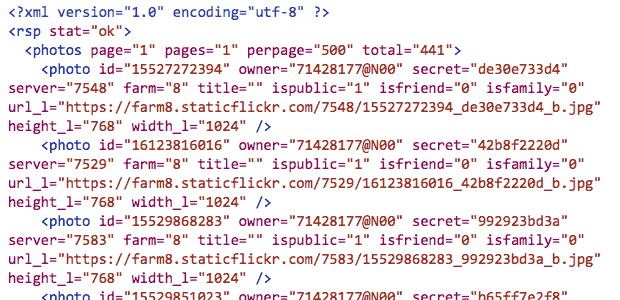
Flickr’s api would allow you to do this, but it seemed a bit excessive to try and write a pile of code. The Flickr API has a section to test all of the command so I headed to: Flickr Api Explorer – flickr.photos.search. There I put my own user ID in, set the min_date_taken and max_date_taken, increased the per_page to 500 and added the large photo url to the extras field.

This produced an xml file will all the information:

Flickr xml

I then extracted the 397 urls from the text. There will be many ways to do this, but I am experimenting with the Sublime Text application at the moment, it found & selected all of the https: occurrences and the with cmd-shift-right arrow expanded the selection to the quotes. One copy got all of the files!

Once I had a list of urls I edit those so that each line was:

curl "https://farm4.staticflickr.com/3897/14598292323_ae6462fa07_b.jpg" > image_183.jpg

With the numbers out the image sequential and padded to 3 characters, eg image_001.jpg, image 002.jpg etc. I also numbered then in reverse so the oldest photo would be first.

I saved this text as a file, dl.sh and moved into the terminal:

cd path/to/thefolder
chmod +x dl.sh
./dl.sh

This code set the dl.sh file to executable and then ran it, the terminal filled with text and the folder with images. Curl is the command-line tool for downloading files.

Sizing images

Downloading the large size gave a folder full of images but some where landscape and some portrait, ie 1024 × 768 or 768 x1024 I need the images to all be the same size. So i used the sips utility to first resize them, sips --resampleHeight 768 *.jpg, then to pad the portrait ones: sips --padToHeightWidth 786 1024 *.jpg

Which gives me pictures like this for the portrait ones:

Img 076 toad

Making the movie

I discounted using iMove, moviemaker or the like as I wanted something quick (not necessary quick this time…) and that could be automated. I am also not sure in iMovie can show as fast as 6 per second. (Update, a quick look shows iMove can set speed to fractions of a second per frame.)

I though of a couple of ways to make the move, using Quicktime pro or ffmpeg. Quicktime pro proved the easiest option, opened the app and File -> Open Image sequence…, choose 6 frames per second, then all I had to do was save the movie.

Unfortunately Quicktime pro has been replace by Quicktime and it is a bit of a bother to get your old QT pro working if you had paid for a license. So I though I’d figure out ffmpeg too.

With great power comes great complexity

FFmpeg is A complete, cross-platform solution to record, convert and stream audio and video. It is a command line application and has a lot of variables. I can usually find out the right command with a bit of google. This one took quite a lot of google and failures. Most of these failures came from me trying to set a framerate, which lead to skipped frames. Eventually I dropped the idea of using the framerate options and got a very (too) fast video with this:

ffmpeg -f image2 -i IMG_%03d.jpg -c:v libx264 -pix_fmt yuv420p out.mp4

Note to self, in the -i, iput option IMG_%03d.jpg means all the images with 3 numerals, eg 001, 002… 375

I then slowed it down a little with this:

ffmpeg -i out.mp4 -filter:v "setpts=4.0*PTS" 2014-flickr-show.mp4

And added the audio:

ffmpeg -i 2014-flickr-show.mp4 -i pum.mp3 -map 0 -map 1 -codec copy -codec:a aac -strict experimental -b:a 192k -shortest 2014-flickr-show-audio.mp4

It took a fair bit of google to get the audio right too, the -codec:a option seems to sort things out.

Whys and Wherefores

As noted above, I could have done most of this with iMovie. But by using ffmpeg or QT pro, I’ve the opportunity to play, learn and possibly end up with an automated system. It would seem well within the realms of possibility to have a script that used the flickr api to download a bunch of images, perhaps for a year or with a tag and make a movie from them.

I’ve now figured out how to do most of this by piecing together the above fragments and finding out a bit about loops and renaming files, but I’ve no idea of how to create a bash script that will replace my hard coded tags, usernames ect with input, more to learn.

Once you have a lot of jpgs

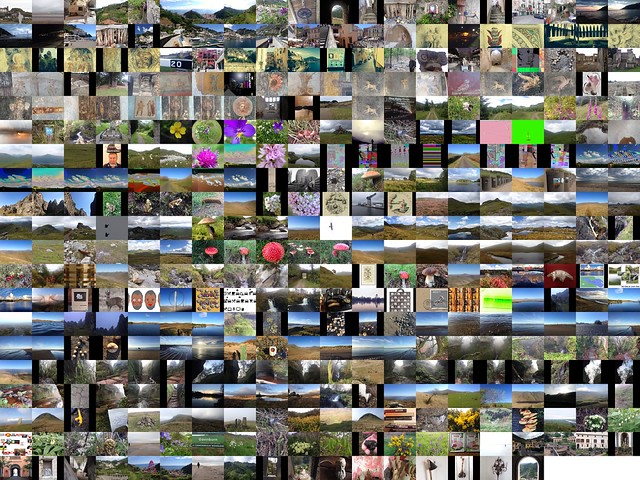
You might as well do other things with them: Flickr 2014

I quite enjoy scripts and things that make my computing life a we bit easier. I’ve blogged a few times about AppleScript which I find very handy on my mac. On my iPhone I’ve never really found a way of automating things that stuck with me. I’ve downloaded and played with a few apps, but mostly they have felt a bit too convoluted for me.

I do regularly combine application to get a result, the so called app smashing, although I prefer the less destructive sounding playflow (I think I am the only person who does).

Workflow Icon

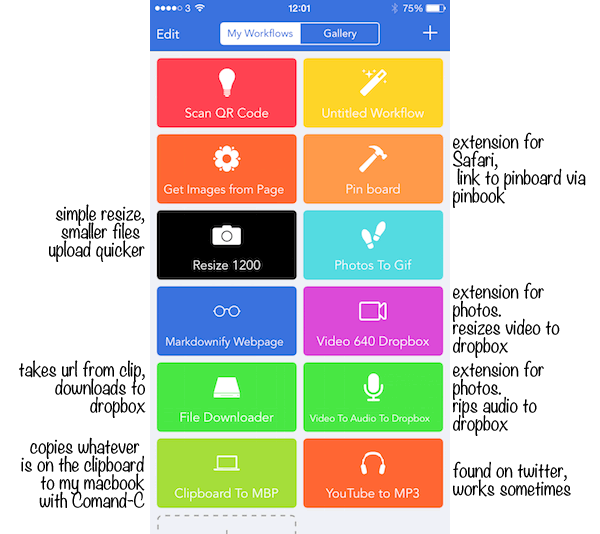
I’ve now found an application which looks like making this sort of thing on iOS a bit simpler: Workflow.

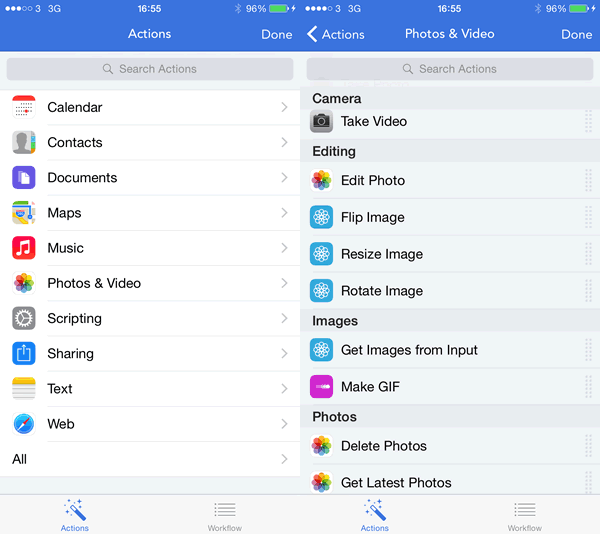
Workflow is more like Automator than AppleScript as it uses the same sort of block steps. You can combine any of the actions to create workflows. These steps or rather actions can deal with images, text, maps in all sorts of ways.

The think that makes this application stand out is that it has arrived hot on the heels of the iOS 8 improvements to inter application communication. You can set the application to the a Action Extension, this means it can be run from the share sheet in other applications. As you can set the input for a workflow to accept different things you can control the sheets where it will show.

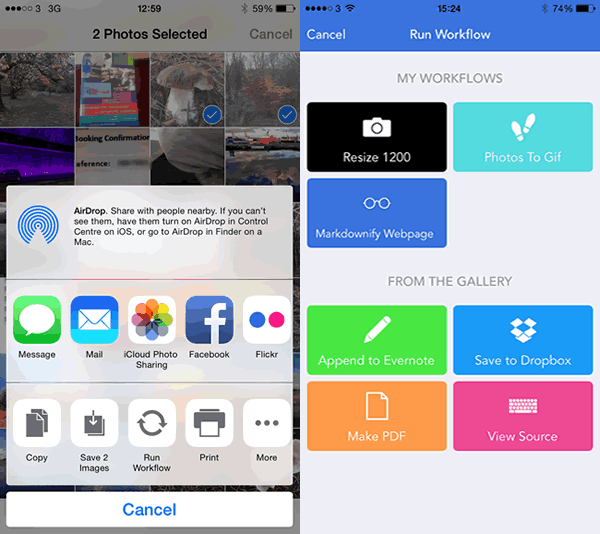
In the screenshot below I’ve selected 2 photos and then hit the share button. When I click the Run Workflow button I can choose a workflow from the next screen(shown on the right) . In this case one choice is a simple workflow I made to downsize image an save it to the camera roll.

Sharesheet

These workflows are made by dragging and dropping action blocks onto a workflow. Workflows can be set to be run from a icon added to your home screen, the Launch Center app or from share sheets in other apps. The latter can be set to accept different types of data and will then show up in the appropriate apps.

So far I’ve only made a few very simple workflows with two or three block, but there is potential to loop and have if-then type decision making.

Some Workflows

There are over 150 actions you can use to build a workflow:

Actions

I’ve only scratched the surface of workflow over the last week or so, but it looks like it could make iOS more fun and effective.

A few links: