
I’ve occasionally blogged about my use of video in the classroom here before but I thought it might be worth pulling some of the ways I’ve used it together into a more theoretical approach than my usual ‘get excited, try stuff, fall over, pick myself up and make it work’ way of working with technology. So this post came be seen as how I would have organised it if I was smarter approach, the examples and practice are real, but no necessarily in the right order.

Tools

A few years ago as part of the masterclass program I was given a DV camera. This was well used for making movies and stop motion animation but I’ve since come to believe that a simpler camera and working on smaller (much smaller) videos is a good approach to take in the primary classroom, integrating the use of video into lessons rather than making the video the focus. Over the last 3 years I’ve been using the video capabilities of digital cameras rather than a ‘proper’ video camera. I guess the emerging flip style cameras could be used in this approach. We have used our ‘good’ camera a Olympus: SP510 Ultra Zoom and my own Fujifilm FinePix A345 and well as many of the Sandaig set of Fujifilm FinePix cameras which are slightly later model than mine. My Fugi and the Olympus do sound, the newer Fugis that we had do not. The Olympus does 640 x 480 the Fugis 320 x 240 video.

As for editing applications I’ve used iMove, of various versions, MovieMaker on windows, and quicktime pro to get a very quick and dirty movie published. Given my choice, for this sort of movie, I’d now use iMovie ’08.

Starting Simple

The first movie we made this session was a whole class effort, a series of photos were taken and then the children added there picture and gave it a title.

We took the photos in half an hour in the morning, got one child up and running with how to add a photo and a title, that child supervised and help the others to add their photos in the afternoon and we finished by choosing and adding some music and credits

Next it seems a good idea to let them edit a movie from a pile of still images. working in small groups they select which photos to use, add them in sequence and titles, credits and sounds. With iMovie it is simple to create a folder in iPhoto for the pictures the children should select from. In iTunes I kept a supply of short garageband creations that children have previously made and some creative commons music, which allows us to discuss copyright and keep everything simple.
All this lesson does is get the children familiar with the software, think about media selection, ordering events to tell a story and get a bit of practice in collaborative working. A school trip or event, say sports day are fine for this sort of introductory event. My class made some this session: Ayr Trip Videos using a bunch of stills and some clips all taken with the fugifilm cameras.

Next Steps

The children will now have a bit of an idea on how to edit video, and a couple of experts who can be relied on to help others should have emerged. The advantage of using digital still cameras and iLife (iMove, iPhoto and garageband) is the easy workflow, plug in the camera and import, the pictures and video are all there in iMovie when you want them. Having said that I found children can use Movie Maker very well too.

The idea is now to start incorporating the technique into regular, rather than ict, lessons. I’ve made two main sort of short movie in my classroom, whole class movies and movies made by individuals, pairs and small groups. The whole class movies can be made of short sections, usually stills which individual children can add voice and text to, this Garden Lunes one is a recording of children reading their poems over photos of them writing the poems on the paving in the school garden.
The other use I’ve made of these wee movies is as a way of recording science experiments, these can be assessment evidence that does not require pencil and paper. In the Gears movie I had challenged groups to film and explanation of a gear train that would need to extra text, after the groups had made their models we quickly, as a class, added the very short fragments together with QuickTime Pro and posted them to the blog. Last session I used a wiki to challenge children to carry out various science experiments and they used the wiki to report their findings they were allowed to use text, slideshows, audio or video to record their findings for example Ruler And Railings and SoundTravels-Chipmunks. I think that this use of video give children an alternative and valid way of recording experiments.

Publishing

I believe that publishing a record of class work is a valuable experience, making tasks ‘real’ and adding to their purpose I’ve experimented with various ways of getting video onto the Sandaig website. At one time I made a flash video player for uses on the Sandaig Television blog but converting a movie file to a flash video format is not something I’d expect children to do in the classroom, too long and boring so I tended to publish those file after school. I then created a simple form where we could add links to the movie and an optional splash screen that would produce quicktime code on the blog, children could put in a username and password, upload a video and get the code for the blog or our wiki, this produces this:

More recently I’ve experimented with edublogs.tv which allows you to upload video and provides embed codes for example Primary 2 Sandaig Tour

I’ve also tested vimeo and blip.tv both produce nice flash players. You can see examples on my Embed Tests page. I am leaning towards blip as a solution as you can upload m4v files and blip will give you an iTunes friendly rss feed that will play video on an iPod, quick video podcasting.

Difficulties and Drawbacks

Editing movies is pretty straightforward, I had a bit of trouble when working on the sound and light wiki as I was only working with that class for one afternoon a week and the children didn’t always finish there editing, I had not trained them to import the movies either and this session I worked harder on that. Uploading the movies gave us trouble sometimes, we spent a lot of last year with an unidentified network problem which resulted in a lot of frustration. Children can get a bit wrapped up in playing with the toys and forget the purpose of their movie.

Before I left Sandaig this session I had started on a better footing, following the steps above, with the idea that the technology should be transparent, allowing the children to get on with being creative with language, creating evidence of understanding or carrying out the learning task and feel that this small scale movie production is a valuable tool in a teachers toolkit.

I’ve been quite interested in finding out how my iPhone could be used in teaching and learning. last week I and my class making GPS MathTracks inspired by the LearningTracks flickr group and Tom, Andrew and David‘s ideas about Art tracks and spelling with a trackstick. I also read Ollie’s post about Geography Fieldwork with the iPhone.

What I did

Yesterday I was going for a walk and tried out a few ideas with the phone. This is not of course the same as using it with a class but gave me some food for thoughts.

The first thing that I did was record the point of the walk with SnailTrail with which is is simple to collect points and mail them out of the phone. these can be put into a kml template to create a kml file that you can view in google earth or upload and show in google maps. The google map example here show that one or two points went astray. It is easy enough to review these in google earth and remove them. (edit example).

I took a series of photos with the iPhone, these were uploaded to flickr today and automatically placed on the map: Glengoyne to Earl’s Seat set on the map this is a pretty straightforward was of getting the photos onto the map. You could also use the flickr description to add text, the note facility etc as well as discuss the pictures with the comments.

Next I took the photos got the location from the Exif data in the files, I used this to create a kml file and combined that with the snail trail. I also added the time taken and an occasional title to the kml file. I am not sure of the best way of doing this, I made a wee supercard project to script most of this.

Which produces this kml file and looks like this in google maps

The project is pretty rough at the moment and I am sure there are applications out there for doing this, but I wanted to learn a little more about kml files. This sort of thing could be a way of displaying findings for a trip or outdoor activity.

I tweeted occasionally while walking, this produces a list of tweets on Twitter Search as I was using twitterific it was easy to add locations and photos to the tweets, I guess the RSS feed could be parsed to show the pictures and locations or mini maps.

I also added a few notes with YouNote, this application lets you take photos, write notes, record audio and even sketch with a finger. Which would cover most of what you would need on a field trip or excursion. Future editions will let you email notes to get them out of the phone. At the moment you can sync or backup your notes via a desktop application. This results in a zip file on your computer, inside are folders for each note containing multi-media material and xml files with descriptions this information includes geo locations. I suppose that a script could be written to combine this media and xml to create a web page/ map / kml file.

I feel younote is approaching what I would like to see in an iPhone application, if it was combined with a blogging facility or export to a webpage with media it would be ideal.

So what I would like to see would be a combination of the thinks I’ve tried that saved and exported in a usable format. I’ve looked at a few of the blogging application but not found one that does what I want yet.

What I want

My idea application would allow the recording and combining of information in many forms, text, photos and audio recording. It would automatically add location and date and time information. These could be published to a blog and geo rss feed, either on the go, or at a later time if connection to the network is poor. It would be match with a desktop publishing application, this would get the data and media from the phone and allow additions, editing and mashing up, it would output in a multitude of formats.

I’d also like some additions to the iPhone itself:

  • Copy and paste
  • A camera that can take close ups: I often take photos of flora, fauna, fungi and bones I’d like to take close ups, it might be worth testing putting a magnifying glass in front trick.
  • Video
  • Temperature recording
  • A compass on the Map application
What I’d use it for

The obvious thing is geography, but I would be more likely to use it for art and maths tracks as mentioned above. It could also be used to record any outing, not one that covers space on a map. I’d love to do a poetry or painting walk, where a class would record reactions to surroundings, typing would probably be limited to haiku(ideal for snapshot poems), but longer ones could be recorded. A class trip to the beach could spark drawing, writing and photos to produce an online gallery.

In the huge number of iPhone apps now available my ideal application may exist, if it does let me know.

I am moving from John @ Sandaig to John’s World Wide Wall Display. The RSS Feed url will stay the same.

I’ve been blogging at Sandaig since February 2005 and worked at Sandaig for over 15 years. I’ve had a wonderful time working there but am now moving on to take up a post as an ICT development officer with North Lanarkshire Education. At Sandaig I had an amazing opportunity to playfully experiment with emerging technologies. As you can imagine such and enabling and supportive environment is hard to leave, not to mention the feeling of leaving a class mid session. I am not sure what the future will bring but I hope to continue blogging about education and technology from a slightly different perspective.

I hope that the children at Sandaig will continue to blog about their learning and fun and I’ll still be trying to support that effort remotely if I can.

I could have continued to host my blog with Sandaig but feel that might lead to some confusion.

I am not sure how this move will work out from a technical angle, I’ll leave the old content were it was and I’ve copied it over to the new place. I’ve replace the comment box at Sandaig with an explanation. The RSS feed now points to the new blog.

If you are kind enough to link to me I’d appreciate it if you updated your links.
In a week or so I’ll replace the blog page at Sandaig with a redirect of some sort.

After an exciting twittersation between Andrew Brown and Tom Barrett reported on David‘s blog EdCompBlog: Can you guess what it is yet? and Ollie’s iPhone posts (starting with iPhone in Education – Introduction) I was keen to try out gps drawing with my class.

I do not have a gps recorder but I do have an iPhone, I had been a little disappointed with the first GPS app I tried, a freebie, which only worked if you had a connection to the internet so I had invested 59 pence in SnailTrail

SnailTrail records your gps position and saves it to a list, you can add a name to the point and date and time is recorded. The list can sent via email. The points are saved until you delete them. The email arrives with a simple list of points, a second list with names you added and date time and a link to a simple kml template. You can download then open the template, in a text editor, paste in your points and see the trail in Google Earth by opening the template file.

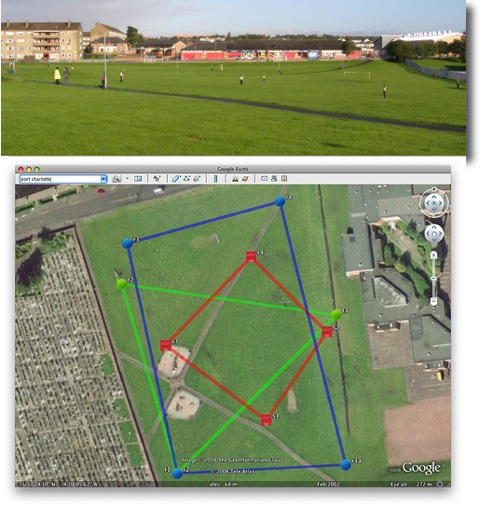
On Tuesday last week I had a few early finishers in Maths draw some 2D shapes onto printouts from Google Earth, of the park next to the school. On Wednesday I split the class into groups, issued colour coded gym bibs and explained that they were challenged to make a shape on the park. We talked over some ideas for making straight lines and figuring out where they should be on the map. The children then scattered very quickly indeed, splashing round a rather wet park. Once they were in position I walked round gathering the locations on my phone. I had planned for one child in each group to run round recording but the field was so wet I though it better to keep them still. We emailed the waypoints to my email and returned to school.

A quick paste of the points into the template showed up a few flaws in my implementation. I had not collected the points in sets of shapes, rather just walked down the field, so they points were all mixed up. The template was designed to show a simple trail rather than shapes.

I took the points and template home and played around a bit, the above screenshot was the result, our five pointed star was a bit of a mess so I left it out.

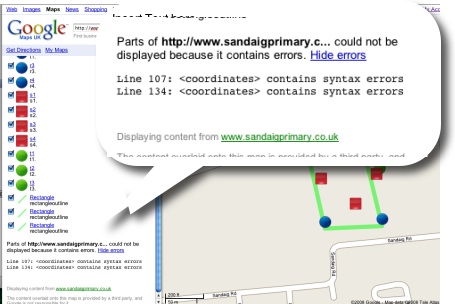
This morning I tried opening the template via google maps, and it showed a couple of errors.

I had another wee dig around the file and now have one that shows up correctly in google maps.

I found it a bit tricky to fix as updating the file did not update in google maps, I had to rename the file with each test to view the results, I have got a lot to learn about kml files.

This is a pretty nice lesson, you can cover quite a lot in it. The properties of shapes, this challenges children to really understand these, working as a team, problem solving, co-ordinates, and a way to introduce latitude and longitude. The children really enjoyed it.

You do need to organise a few things, I had a PSA and link teacher from our local secondary with me, neither had very suitable footwear;-) Next time I’d record the shapes in order and have a template ready to draw the planned shapes as soon as we came back.

Tom Barrett has started a flickr group LearningTracks for sharing ideas about using tracksticks and other gps devices to draw on Google Earth.